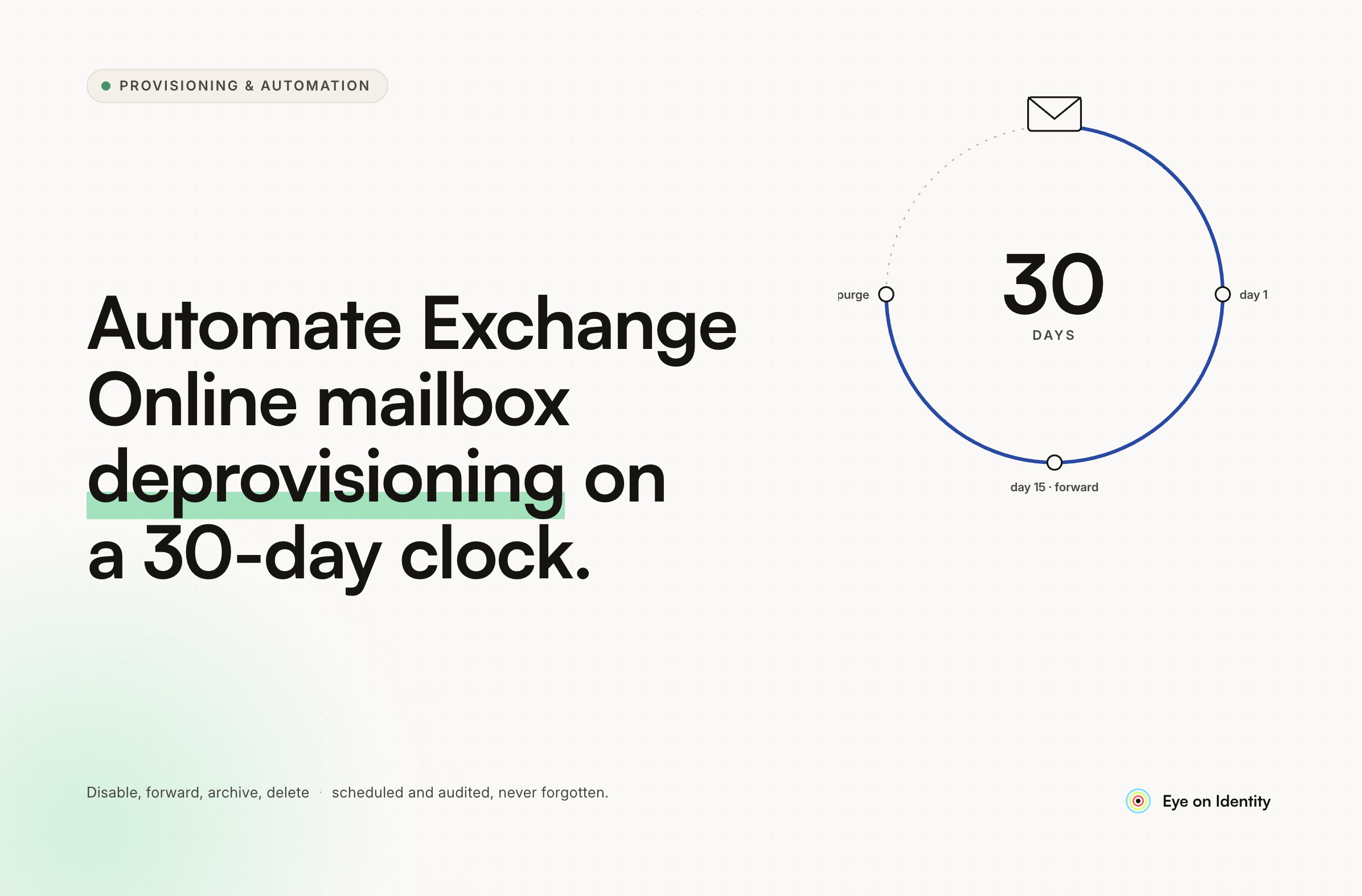


You know the behavior. Disable the on-prem AD object, wait for Azure AD Connect to sync, and the Office 365 account disables cleanly while the mailbox stays active — able to receive messages and send auto-replies. That's the 30-day window you want: auto-reply set, mailbox reachable, user account locked down. Then on day 30, remove the license, delete the AD object, mailbox decommissioned.
What's breaking that workflow for most teams right now is the license removal step. As soon as the E3 license is unassigned from the disabled account, the mailbox becomes unroutable. Emails sent to it don't queue — they bounce. The auto-reply goes silent. The 30-day window collapses the moment IT removes the license.
If you're trying to automate Exchange Online mailbox deprovisioning across a staged offboarding window, that licensing behavior is the first thing to resolve — and how you automate around it determines whether your compliance and litigation hold requirements stay intact.
What Actually Happens When You Remove a License From a Disabled Exchange Online Mailbox
When you disable the on-prem AD object and AD Connect syncs, the Office 365 account disables and the mailbox remains in an active state. The mailbox can still receive mail and fire auto-replies at this point because the license is still assigned — the account is disabled, but the mailbox service is still provisioned.
When you then remove the E3 license from that disabled account, you are disconnecting the mailbox. The address becomes unroutable. Messages sent to it return an NDR rather than delivering or queuing. The auto-reply stops functioning because the mailbox is no longer in a state that Exchange Online will route traffic to.
The practical fix, as noted by practitioners who have run into this exact behavior, is converting the mailbox to a shared mailbox before removing the license. Shared mailboxes in Exchange Online don't require a per-user license to remain active and routable. Converting the disabled user's mailbox to a shared mailbox preserves routability and auto-reply functionality without holding an E3 license for 30 days. After your window closes, you delete the shared mailbox and the on-prem AD object together.
Verify the current behavior against Microsoft's Exchange Online documentation before building your workflow around it — Microsoft has changed how disconnected mailbox handling works across versions, and the exact behavior under a hybrid sync configuration can differ from a cloud-only setup.
Why Manual Staged Offboarding Breaks Down at Scale
The 30-day window is the right policy. The problem is executing it manually across every departure.
The typical manual process: IT disables the AD object, sets the auto-reply by hand, makes a calendar note to follow up in 30 days, and hopes someone on the team remembers to remove the license and delete the object at the end of the window. Under normal volume that's manageable. Under any kind of pressure — multiple departures in the same week, staff turnover on the IT side, end-of-quarter departures — the follow-up step gets missed. Licenses stay assigned past their window. AD objects linger. Mailboxes that should be decommissioned remain active.
Litigation holds add a second failure mode. The 30-day cleanup assumes no legal hold is in place. If a user is under active litigation hold and IT runs the standard decommission at day 30 — removing the license, deleting the AD object — the mailbox data may be unrecoverable. Without an explicit check before the final teardown steps, the offboarding workflow can destroy evidence or violate a preservation obligation.
Both problems — the missed follow-up and the blind litigation hold deletion — are the predictable output of a staged workflow that relies on human memory rather than automation.
How to Automate a 30-Day Exchange Online Offboarding Workflow
Zluri's Offboarding Playbooks handle staged, time-delayed workflows natively. The playbook structure maps directly to the Exchange Online offboarding sequence you're trying to run.
When HR updates the termination date in your HRMS, Zluri detects the change and triggers the offboarding playbook automatically. No IT ticket required to start the process.
On day one, the playbook executes the immediate actions: disabling the on-prem AD object and — if you're converting to shared mailbox for the 30-day window — executing that conversion via the Microsoft 365 API so the mailbox stays routable while the user account is locked. The auto-reply is configured as part of the same playbook run.
The playbook then hits a Wait For step — a built-in timer that pauses execution for 30 days before resuming. Nothing needs to be calendared. No one needs to remember. The workflow is suspended and resumes automatically when the timer expires.
On day 30, the playbook runs the final teardown: unassigning the M365 E3 license, deleting the on-prem AD object, and archiving the user.
Handling Litigation Holds Before Final Decommission
The litigation hold check runs as a conditional step inside the playbook before the day-30 teardown executes. Zluri can be configured to make an API call to your legal hold platform or compliance system before running the final deletion steps. If the user is under active litigation hold, the playbook skips the license removal and deletion and flags the case for manual review instead. If no hold is in place, the teardown runs automatically.
This means the offboarding workflow is fully automated for the standard case, and the exception — active litigation hold — surfaces as a flagged item rather than a silent deletion of preserved data. The audit trail captures both the automated actions and the hold check, which matters when legal needs to verify that data preservation obligations were followed.
What the Full Workflow Looks Like End to End
HR marks the termination date in the HRMS. Zluri detects the event and triggers the playbook. Day one: AD object disabled, mailbox converted to shared mailbox, auto-reply configured. Timer set for 30 days. Day 30: litigation hold check runs — if clear, license is removed, AD object deleted, mailbox archived. If hold is active, the step is skipped and the case is flagged.
Every step is logged with a timestamp. Every skipped step due to a hold condition is recorded with the reason. The result is an offboarding record that shows exactly what happened, when, and why — without requiring IT to manually track a 30-day window for every departure.
A Note on Licensing Verification
The shared mailbox conversion path is the practical workaround that preserves mailbox routability without holding an E3 license through the 30-day window. Microsoft's licensing and Exchange Online behavior has changed across versions — what worked in a hybrid configuration two years ago may behave differently today. Before finalizing your playbook configuration, verify the current shared mailbox licensing requirements and disconnected mailbox behavior against Microsoft's official Exchange Online documentation for your specific hybrid or cloud-only setup.
Frequently Asked Questions
What happens to an Exchange Online mailbox when you remove the license from a disabled user?
Removing the license disconnects the mailbox. The email address becomes unroutable — messages sent to it return an NDR rather than delivering. Auto-replies stop functioning. The mailbox data is retrievable for 30 days if you re-license the account, but during the unlicensed period the mailbox is not active from a routing perspective. Converting to a shared mailbox before removing the license preserves routability without requiring a paid license.
How do you keep an Exchange Online auto-reply active after disabling a user account?
Disabling the on-prem AD object and syncing via AD Connect disables the Office 365 account while leaving the mailbox active, as long as the license remains assigned. To maintain the auto-reply without holding an E3 license, convert the mailbox to a shared mailbox before removing the license. Shared mailboxes remain routable and can send auto-replies without a per-user license assignment.
How do you automate a staged 30-day offboarding workflow in Microsoft 365?
An IGA platform like Zluri handles staged workflows through Offboarding Playbooks with built-in Wait For steps. The playbook executes immediate actions on day one — disabling the AD object, converting the mailbox, setting the auto-reply — then pauses for 30 days before running the final teardown steps automatically. No manual follow-up or calendar tracking required.
Does litigation hold affect Exchange Online mailbox deletion during offboarding?
A mailbox under litigation hold should not be deleted or have its license removed until the hold is resolved, as doing so can destroy preserved data and violate legal preservation obligations. Automated offboarding playbooks can include a conditional litigation hold check before executing final teardown steps — skipping deletion and flagging the case for manual review if a hold is active.
See How Zluri's Staged Offboarding Playbooks Handle the Exchange Online Sequence
If your current offboarding process relies on a calendar reminder to clean up at day 30, the window is already slipping. See how Zluri's staged offboarding playbooks handle the Exchange Online sequence — including the litigation hold check — for your specific M365 and hybrid AD setup.


.svg)