.png)



Your SaaS inventory is only as trustworthy as the sources feeding it. Discovery Source Settings let you decide, source by source and data type by data type, exactly what gets in.
Discovery sources report what they see, not what IT actually wants to manage.
An SSO provider, an MDM tool, or a web gateway is built to see broadly, and that breadth is exactly what makes it useful for discovery. But without a filter, personal sign-ups, one-off website visits, and activity from tools no one owns all land in the same catalog as your approved stack. That's a data hygiene problem, and it quietly degrades everything built on top of the inventory: license counts, risk reviews, access certifications, and audit evidence.
Discovery Source Settings in Zluri solve this at the intake layer. In this guide, we cover why discovery data gets noisy and what it costs, the four controls you can configure, how organization-level and application-level settings interact, the toggle dependencies to check before switching anything off, and a practical hygiene playbook.
Why Discovery Data Gets Noisy
Discovery sources are designed for coverage, so they pick up plenty that IT never meant to track.
Take a network or web gateway source like ZScaler. If an employee opens facebook.com, that source can report Facebook as an application and the employee as an app user. Nothing about that tells you Facebook is a tool your organization uses, manages, or pays for. It only tells you someone visited a website. SSO and MDM integrations behave the same way: they surface applications and activity from places IT often has no interest in monitoring.
Before Discovery Source Settings existed, this created three problems with no clean answer:
- No filter for noisy sources. A source either fed Zluri or it didn't. You couldn't trust it for connected apps while ignoring its activity-inferred noise.
- No control by data type. Turning a source on meant it discovered applications, users, instances, and accounts all together, as a bundle.
- No per-app override. A source could be reliable across the org and still noisy for one specific app, with no way to switch it off for just that app.
A source can be reliable for one type of data and noisy for another. Treating it as all-or-nothing forces you to choose between missing data and polluted data.
What Noisy Discovery Data Costs You
Bad discovery data doesn't stay in the app catalog. Every workflow that reads from the inventory inherits the noise.
- An inflated app catalog. Your team spends triage time on apps that were never in scope, while real shadow IT gets buried in browsing noise.
- Phantom app users. Users appear against apps they never adopted, which skews usage and adoption numbers.
- Unreliable license decisions. Renewal and right-sizing calls depend on who really uses an app. Noisy user data turns those calls into guesswork.
- Distorted risk views. Security reviews start from a list that mixes genuine unmanaged apps with background activity.
- Heavier access reviews. Reviewers are asked to certify accounts and users that shouldn't be in scope, which adds directly to the reviewer fatigue that already undermines access reviews.
- Weaker audit evidence. If the inventory can't be trusted, every report built from it needs a caveat.
The fix is not to discover less. It's to discover with intent: trust each source for the data it's good at, and filter the rest.
What Are Discovery Source Settings in Zluri?
Discovery Source Settings let IT teams turn discovery on or off per source and per data type, so only trusted data enters Zluri.
Instead of a single switch per source, you get control along three dimensions:
- By source: decide how much to trust each one, whether that's Okta, ZScaler, or an MDM integration.
- By entity: control applications, app users, app instances, and app accounts separately.
- By level: set a rule across the whole organization, or override it for a single application.
In practice, this turns your discovery sources from broad intake pipes into configurable inputs. A source you trust for one kind of data no longer has to be trusted for everything, and Zluri's discovery engine keeps its coverage while you keep control of what it admits.
The Four Discovery Controls You Can Configure
Zluri lets you govern four types of discovered data independently, with one hierarchy to keep in mind. Application Discovery is the parent control: switching it off stops Zluri from ingesting applications and everything that depends on them, including app users, instances, and accounts. App Users Discovery decides whether a source can add app users, and it can be set separately for activity-based and connected-app signals. App Instance Discovery controls whether instances are discovered from a source. App Accounts Discovery controls whether Zluri discovers accounts for an app's users and identities, and when it's off, no accounts come in.
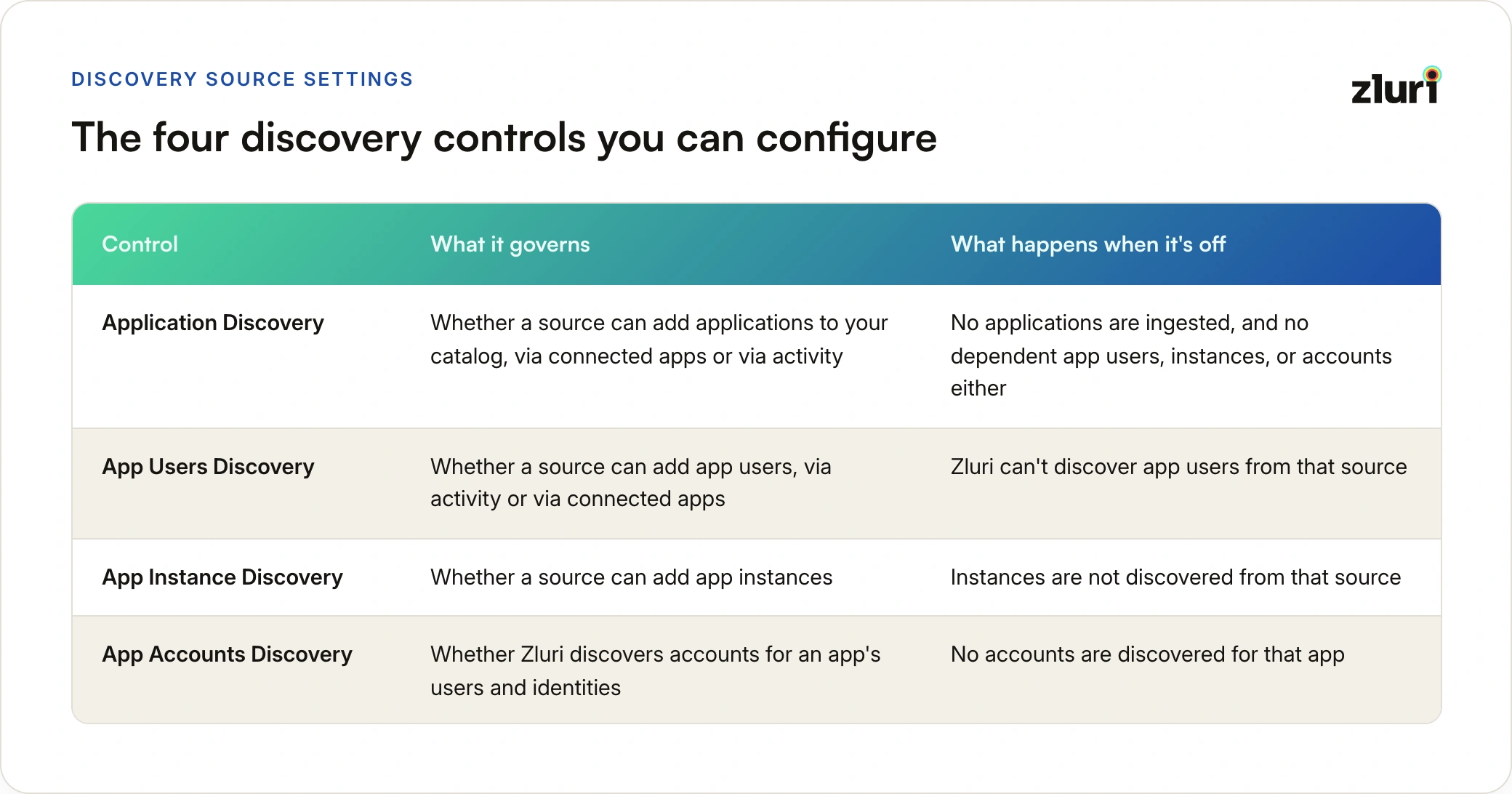
Here's what this looks like in practice. Adobe's users are being discovered from both ZScaler and the Adobe direct integration. The admin sees that ZScaler brings in noisy app-user data, so they turn off App Users Discovery for ZScaler only. The direct integration keeps feeding clean user data, and nothing else changes.
Organization-Level vs Application-Level Settings
Every control works at two levels, and the relationship between them is strict in one direction. An organization-level setting applies to a source across all applications and lives under Settings, then Discovery Settings. An application-level setting applies to one source within one application and lives on that app's page under Settings, then Discovery. The two coexist, but an application-level setting can only match or tighten the organization-level one. It can never loosen it.
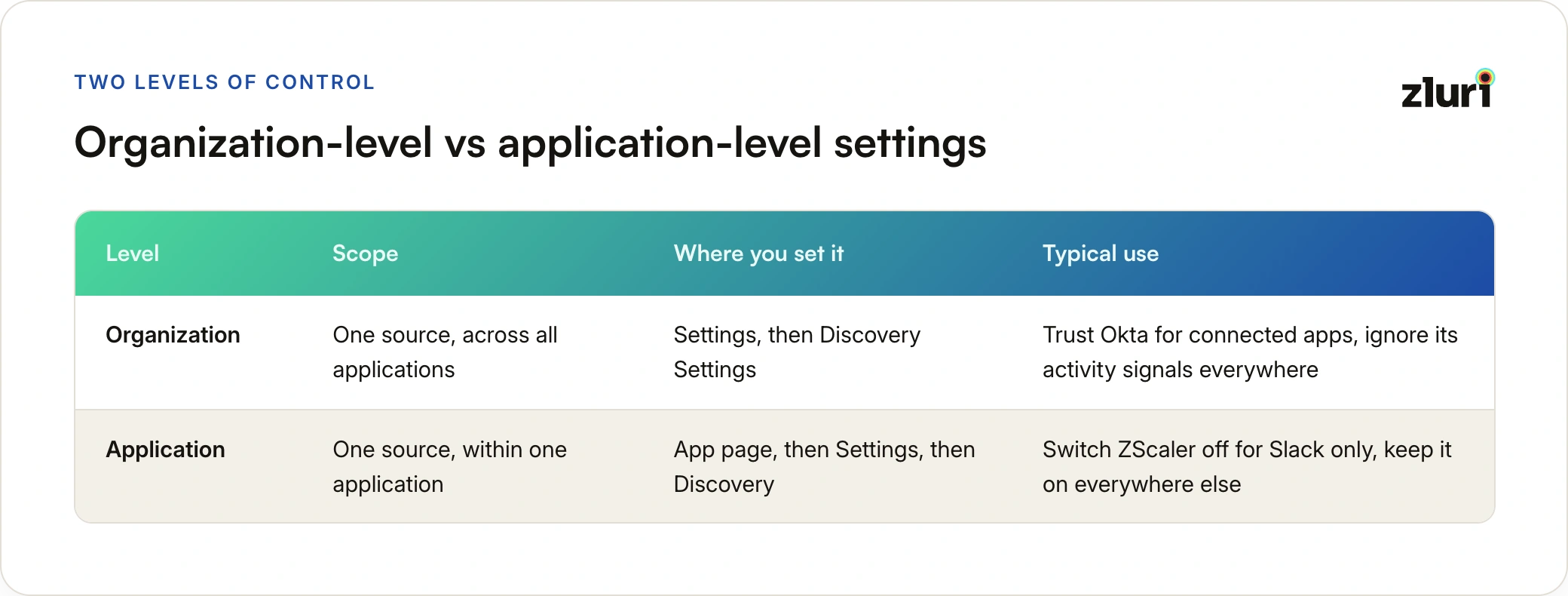
A toggle switched off at the organization level can't be turned back on at the application level. If a source isn't feeding a data type anywhere in the org, there's nothing left for individual apps to control.
How Toggle Dependencies Work
The four controls are not independent. Each depends on the toggles above it, so switching off a parent also switches off everything beneath it.
- Application Discovery sits at the top. If it's off for a source, no applications are ingested from it, and every toggle beneath it goes dark too.
- App Users and App Instances sit beneath it. Each controls its own data type from the source.
- App Accounts depends on both. Accounts are discovered for app users within an instance, so if either App Users or App Instances is off, App Accounts Discovery switches off as well.
A quick illustration of the cascade: John has ZScaler installed and opens facebook.com. Zluri discovers Facebook as an application and John as an app user for Facebook through ZScaler. The admin then turns off Application Discovery for ZScaler. When John later opens instagram.com, Instagram doesn't appear in the catalog, and John isn't recorded as an app user for it either.
Review the dependencies before you disable anything: turning off Application Discovery, App Users Discovery, or App Instance Discovery also turns off App Accounts Discovery.
Two Common Scenarios
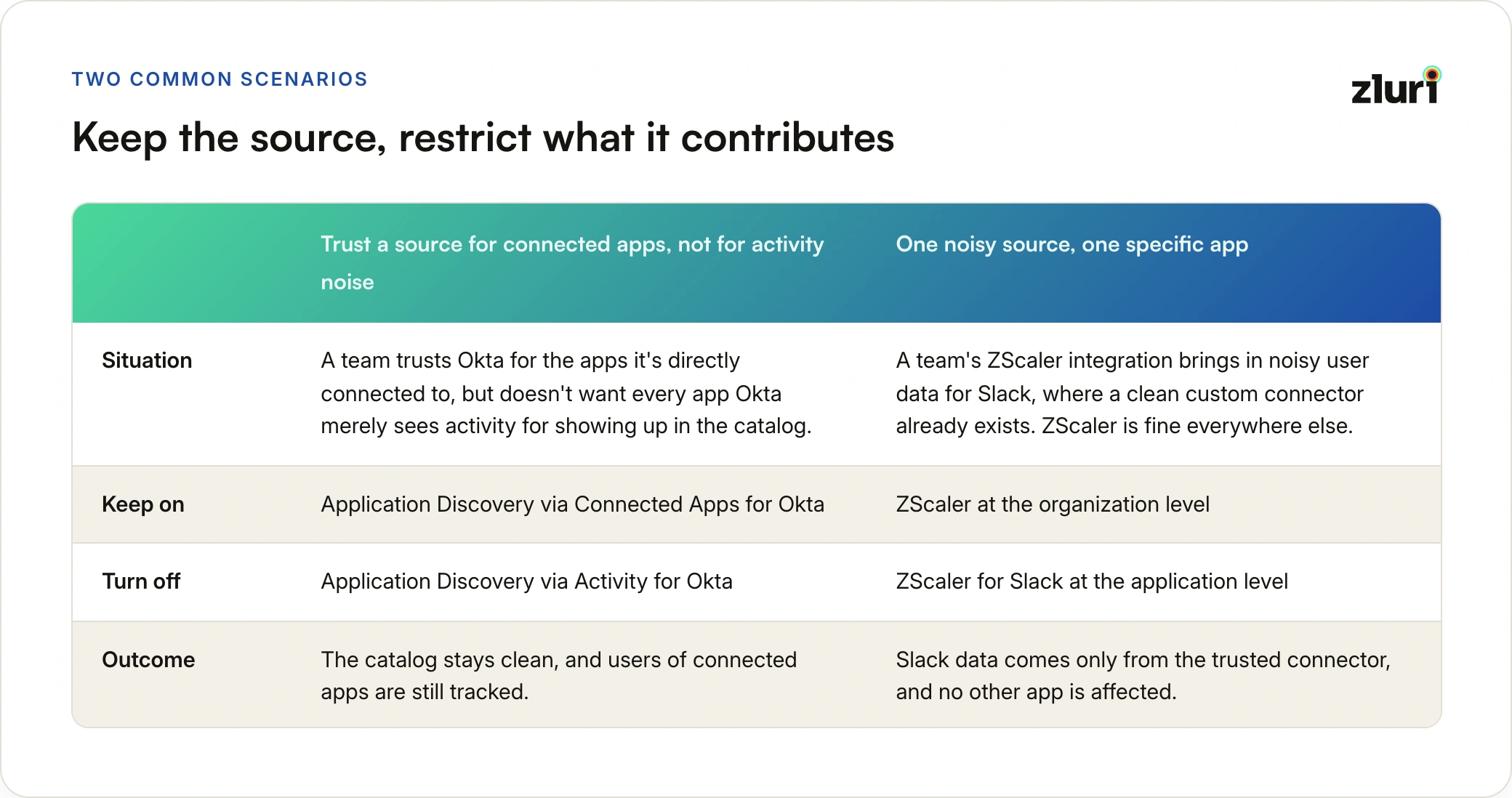
Scenario 1: Trust a source for connected apps, not for activity noise. A team trusts Okta for the apps it's directly connected to, but doesn't want every app Okta merely sees activity for showing up in the catalog.
- Turn on: Application Discovery via Connected Apps for Okta.
- Turn off: Application Discovery via Activity for Okta.
- Outcome: the catalog stays clean, and users of connected apps are still tracked.
Scenario 2: One noisy source, one specific app. A team's ZScaler integration brings in noisy user data for Slack, where a clean custom connector already exists. ZScaler is fine everywhere else.
- Leave on: ZScaler at the organization level.
- Turn off: ZScaler for Slack at the application level.
- Outcome: Slack data comes only from the trusted connector, and no other app is affected.
Both scenarios follow the same logic: keep the source, restrict what it's allowed to contribute.
A Practical Discovery Data Hygiene Playbook
The settings themselves are simple. Using them well takes a short, deliberate review of your sources.
- List every discovery source. SSO providers, MDM tools, network or web gateways, and direct app integrations.
- Rate each source by data type. For each one, ask whether you trust it for applications, app users, instances, and accounts, and whether that trust covers connected apps, activity, or both.
- Set organization-level defaults. Switch off the data types and signal types you don't trust a source for, so the noise never enters in the first place.
- Add application-level overrides. Where an app has a cleaner source, such as a direct integration or custom connector, switch the noisier sources off for that app only.
- Check the dependencies. Confirm that the toggles you're turning off don't disable accounts or instances you still need.
- Revisit when things change. A new source, a new integration, or a change in how a tool is used is a good reason to review the settings again.
Treat this as ongoing hygiene, not a one-time cleanup. Your stack and your sources keep changing, and the rules for what you trust should keep up.
What to Know Before You Change a Toggle
Switching a toggle off changes what's discovered from the next sync onward. It does not clean up what's already in Zluri.
- Changes apply to future syncs only. Existing apps, users, instances, and accounts stay untouched.
- Skipped data can't be retrieved. Anything that isn't discovered while a toggle is off can't be recovered later, so decide deliberately.
- Permissions are limited. Only Owner and Admin roles can view or change discovery source settings.
Where to Configure Discovery Source Settings
You can set discovery rules in two places, matching the two levels of control.
- Organization level: go to Settings, then Discovery Settings, and configure each source for all applications.
- Application level: open the app's page, go to Settings, then Discovery, and configure a source for that app only.
Start at the organization level to set sensible defaults, then use application-level overrides for the exceptions.
Make Trust a Setting, Not an Assumption
Discovery is only useful when the data behind it is something your team can act on. Discovery Source Settings give you that control: pick the sources you trust, decide what each one is allowed to contribute, and override the rules where one app needs different treatment.
Start with your noisiest source, switch off the data types you don't trust it for, and watch your catalog, license, and access review data get cleaner from the next sync.
Frequently Asked Questions
Does turning off a toggle delete data Zluri has already discovered?
No. Changes apply from the next sync onward, and existing apps, users, instances, and accounts are untouched. To clean up existing data, contact the Zluri team.
Can I trust a source for applications but not for app users?
Yes. Applications, app users, app instances, and app accounts are controlled separately, and both applications and app users can be set independently for activity signals and connected-app signals.
Can I turn on at the app level something that's off at the org level?
No. An application-level setting can only match or be more restrictive than the organization-level setting, never looser.
What happens to accounts if I turn off app users or instances?
App Accounts Discovery turns off too, because accounts are discovered for app users within an instance. Check this dependency before disabling either parent toggle.
Can data skipped while a toggle was off be recovered later?
No. Data that isn't discovered while a toggle is off can't be retrieved retroactively, so review the impact before you switch anything off.
Who can change discovery source settings?
Only users with the Owner or Admin role can view or change them.