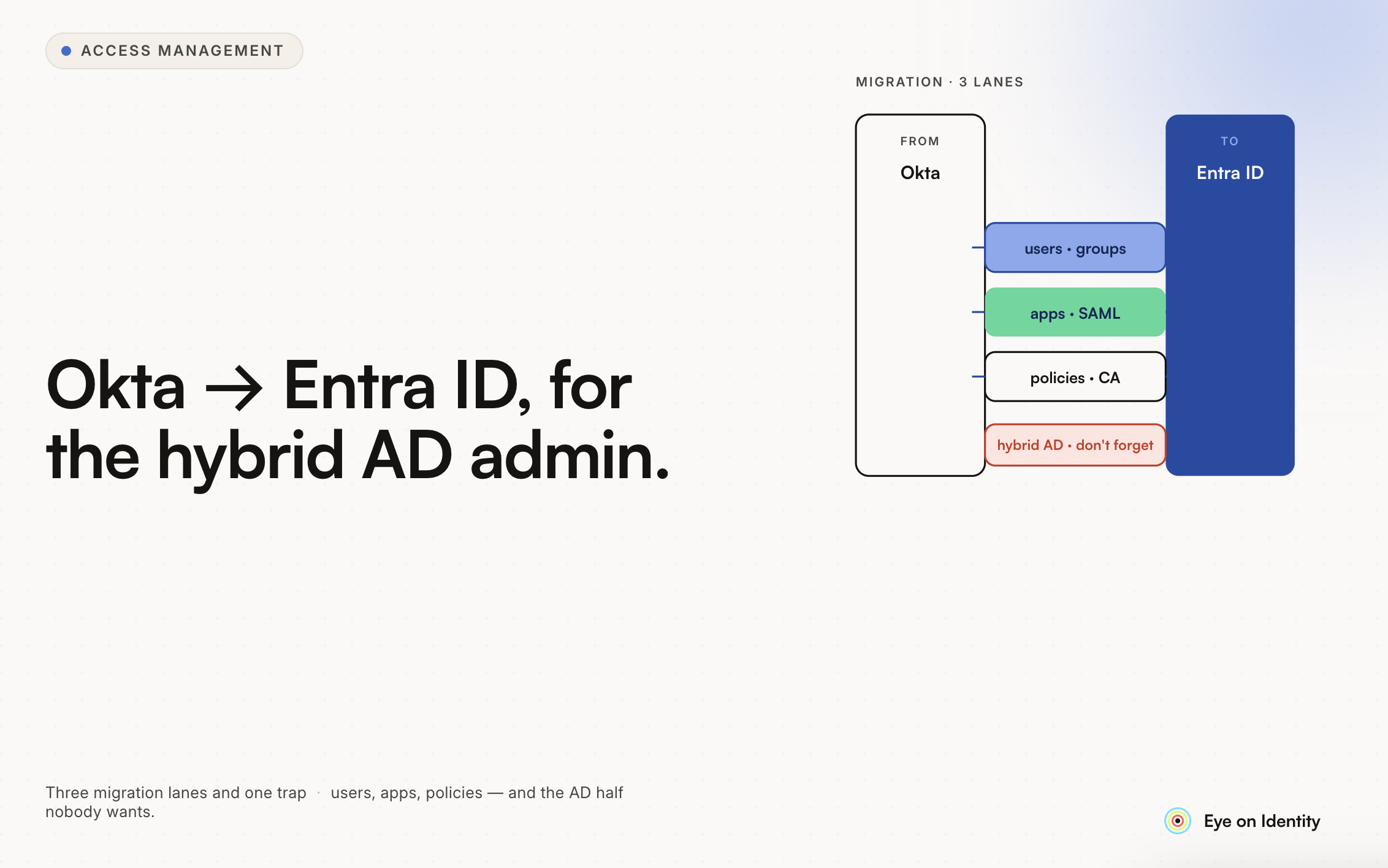


Making the switch from Okta to Microsoft Entra ID (formerly Azure AD) as your primary identity platform is one of the more common transitions for identity professionals, particularly when an organization's licensing makes Entra ID the practical choice. Your Okta background is a genuine advantage — the conceptual framework transfers well — but the terminology, tooling, and especially the hybrid AD context require significant "code-switching."
Here's what you actually need to know to make the transition effectively.
How Your Okta Knowledge Transfers
The foundational concepts are the same. Both platforms are Identity Providers — they authenticate users, enforce MFA, control application access, and manage the lifecycle of identities through provisioning and deprovisioning. The mental model you've built around SSO federation, group-based access assignment, and conditional access policies all transfers. The implementation looks different, but the underlying logic is familiar.
The biggest conceptual shift isn't in authentication — it's in the ecosystem. Okta was designed as a cloud-first, SaaS-first platform that connects to anything. Entra ID was designed as Microsoft's cloud extension of Active Directory, and its depth in hybrid environments (connecting on-premises AD to cloud workloads) reflects that heritage. Understanding this context explains a lot of Entra ID's design decisions that seem unnecessarily complex to someone coming from Okta's cleaner SaaS interface.
Concept Mapping: Okta to Entra ID
Okta Groups → Security Groups / Microsoft 365 Groups
Okta Groups are the primary mechanism for managing application access assignments — you add users to groups, groups get assigned to applications. Entra ID has two group types that serve similar purposes: Security Groups (used for access control and policy assignment) and Microsoft 365 Groups (used for collaboration features like shared mailboxes, Teams, and SharePoint). For identity governance purposes, Security Groups are the direct equivalent of Okta Groups.
Application Assignments → Enterprise Applications / App Registrations
In Okta, you assign applications to users or groups through the Applications section. In Entra ID, this splits into two concepts. Enterprise Applications are the registered SaaS applications that have been set up for SSO — the equivalent of your Okta-assigned applications. App Registrations are the application identities used for API access and machine-to-machine authentication — the equivalent of Okta's API tokens for service-to-service connections.
Okta Universal Directory → Microsoft Graph / Directory Management
Okta's Universal Directory is the single source of truth for all user attributes in Okta. In Entra ID, the equivalent is the Microsoft 365 directory accessed through Microsoft Graph. Graph is both the data store and the API — when you want to read or write user attributes, group memberships, or directory objects, Microsoft Graph is the interface.
Okta Super Admin → Global Administrator
The Global Administrator role in Entra ID is the equivalent of Okta Super Admin. In practice, Microsoft strongly encourages limiting Global Administrator usage and using more scoped roles (like User Administrator, Groups Administrator, or Application Administrator) for specific tasks. This is good practice in Okta too, but Entra ID's role-based admin model is more granular.
API Tokens → App Registrations with Client Secrets or Certificates
Okta uses API tokens tied to specific admin accounts for service-to-service integrations. Entra ID uses App Registrations with either Client Secrets (similar to API keys) or Certificates for authentication. The important difference: App Registrations are separate identity objects not tied to any user account, which means they're not affected when admin accounts are modified or deactivated. This is the Machine-to-Machine (M2M) pattern, and it's the recommended approach for integrations in Entra ID rather than using delegated user credentials.
What Entra ID P1 Actually Unlocks in a Hybrid Environment
Microsoft's licensing is notoriously confusing, and P1 is the tier where several features you'd consider basic governance requirements become available.
Conditional Access is the P1 feature you'll use most. This is where you enforce the policies that control how users access applications — requiring MFA when off-premises, restricting access to compliant or enrolled devices, blocking legacy authentication protocols, and enforcing sign-in risk policies. Conditional Access in Entra ID is more powerful than what Okta's basic adaptive MFA provides, particularly in its integration with Microsoft Defender for Identity and the Microsoft security ecosystem. It's also more complex to configure correctly — understanding the policy evaluation order and the difference between grant controls and session controls takes time.
Hybrid synchronization with Azure AD Connect (now Microsoft Entra Connect) is the core infrastructure of your hybrid environment. AD Connect syncs user and group objects from your on-premises Active Directory to Entra ID on a default 30-minute cycle. Understanding the sync flow — which attributes come from on-prem AD, which can be managed only in the cloud, and which sync direction changes require careful planning — is essential in a hybrid context.
The key concept: in a hybrid environment, your on-premises AD is typically the authoritative source for most user attributes. Changes to things like user display name, department, or manager should generally be made in on-prem AD and synced to Entra ID, not edited directly in Entra ID where they'll be overwritten at the next sync.
Audit logging with appropriate scope becomes available at P1. The AuditLog.Read.All permission for Microsoft Graph requires P1 licensing, and it's how governance tools read sign-in and configuration change history. Without this, your visibility into what's actually happening in the tenant is limited. The sign-in logs also require P1 to access the full 30-day history rather than the truncated free-tier logs.
One P1 gotcha for not-for-profits: Microsoft by default anonymizes user data in usage reports, even for admins. To see actual usernames and site names in reports, you need to go to the M365 Admin Center → Settings → Org Settings → Reports and toggle the anonymization off. This is a tenant-level setting that's easy to miss and will cause confusion when you're trying to review access data.
Learning Microsoft Graph: Where to Focus
Microsoft Graph is the API that connects everything in the Microsoft ecosystem — reading directory data, managing users and groups, accessing audit logs, managing application assignments. Getting comfortable with Graph is the most valuable technical investment you can make when transitioning to Entra ID.
The permissions model in Graph is important to understand before you start building integrations. Graph permissions come in two types: Delegated permissions (the app acts on behalf of a signed-in user, scoped to what that user can access) and Application permissions (the app acts with its own identity, potentially with tenant-wide access). For administrative integrations and governance tools, Application permissions through an App Registration is the right approach — it's not tied to any individual user session.
Key scopes to learn for a hybrid environment:
- Directory.Read.All — reads users, groups, organizational units, and directory roles. This is the foundation for any tool that needs to understand who exists in your directory and what groups they belong to.
- Group.Read.All and Group.ReadWrite.All — for reading and managing group memberships. Group management is central to how access assignment works in Entra ID.
- AuditLog.Read.All — for reading sign-in logs and audit events. Required for governance visibility.
- IdentityRiskyUser.Read.All — for reading identity risk data from Microsoft Defender for Identity, if that's in your licensing.
Microsoft's Graph Explorer (graph.microsoft.com) is an excellent learning tool — it lets you construct and test API calls against your own tenant with an interactive interface, which is much faster than reading documentation alone.
Key Resources for the Transition
Microsoft Learn has structured learning paths for Entra ID that are consistently well-maintained. The "Implement Microsoft Entra ID" learning path is a good starting point for someone with existing IdP knowledge — it moves faster than content aimed at beginners.
Microsoft's official documentation at learn.microsoft.com is the authoritative reference for specific feature configuration. The Conditional Access documentation in particular is detailed and includes named policy templates for common scenarios.
The Entra admin center (entra.microsoft.com) has significantly improved in recent years and is the primary management interface. Getting familiar with the navigation — Identity, Protection, Governance, and External Identities are the main sections — is early orientation work.
For the hybrid-specific content, the Azure AD Connect (Entra Connect) documentation is worth reading in detail, particularly the sections on attribute synchronization rules and the concepts around soft matching and hard matching for identity correlation between on-prem AD and Entra ID.
Where to Start
The three things to prioritize first in a hybrid Entra ID P1 environment:
Understand your current sync configuration. What's being synced from on-prem AD, what's the current sync health, and where are users and groups authoritative? This is the foundation — everything else depends on the sync state being reliable.
Learn Conditional Access before you configure it. The power to block access at the policy level means mistakes have real user impact. Understand the evaluation logic (all matching policies apply, most restrictive grant control wins) and use report-only mode to test policies before enforcement.
Get comfortable with Microsoft Graph through Graph Explorer. Building the habit of exploring directory data through the API — rather than only through the admin UI — is what makes you efficient in a Microsoft environment, especially as you start building integrations or automating governance tasks.
Your Okta certification gives you the conceptual foundation. The Microsoft-specific tooling and the hybrid complexity are the learning investment.


.svg)