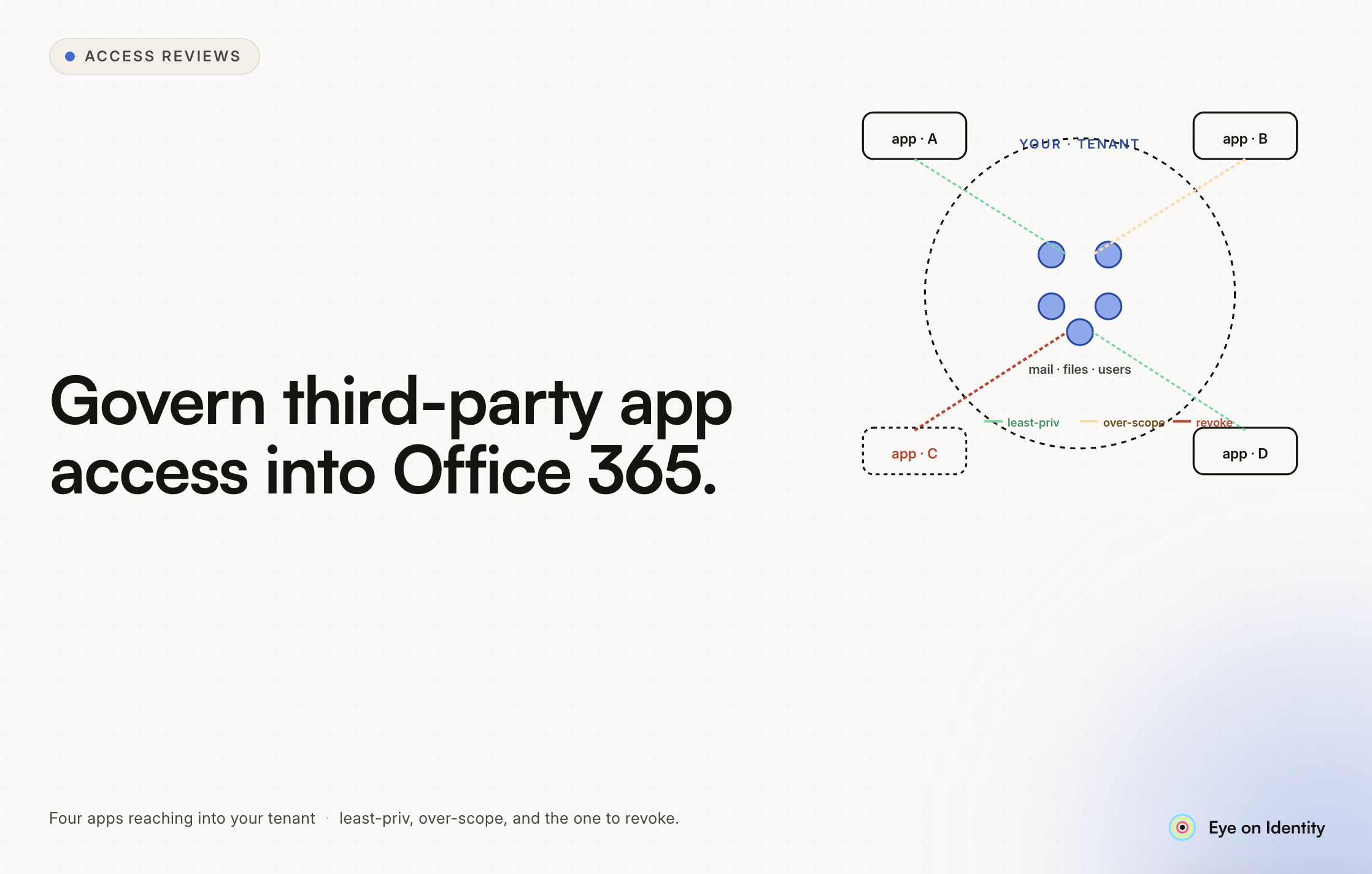


If you haven't recently checked which third-party applications have been granted access to your Office 365 environment, you should. The number of applications users have quietly connected — often to legitimate tools but sometimes with permissions far broader than those tools need — tends to be significantly larger than IT realizes, and the permissions some of those applications hold are substantial.
A print driver app with ongoing read and write access to all files a user can access. A productivity tool granted the ability to send email on a user's behalf. A mobile app with continuous access to calendar data, contacts, and OneDrive without any further prompts to the user. These aren't hypothetical — they're the kinds of access grants that appear routinely when organizations actually look.
This is increasingly a significant security vector: both for legitimate applications that are misconfigured or compromised, and for malicious applications designed to look legitimate enough to get users to consent to broad permissions.
What You're Actually Looking For
Third-party applications connect to Office 365 through OAuth 2.0 consent grants. When a user clicks "Allow" on a permission request, they're granting that application ongoing access to their data — typically without expiration, and often without much understanding of what they're consenting to.
The permissions these applications request fall into two categories:
Delegated permissions operate on behalf of the user and can only access what the user themselves can access. They require the user to be signed in. The risk here is scope: an application that requests "Read and write access to all files" in OneDrive has delegated access to everything the user can reach — which in many environments is substantial.
Application permissions operate without a signed-in user and can access data across the entire tenant (with admin consent). These are higher risk because they're not limited to a single user's scope and don't require active user sessions to remain accessible.
Both categories are worth reviewing, but application permissions with admin consent and broad scope are particularly high priority.
How to Audit What's Currently Connected
Via the Azure Portal
Navigate to Microsoft Entra ID (Azure AD) → Enterprise Applications and filter by Application Type. This shows you the applications that have been registered in your tenant. For each application, you can view which users have consented to it and what permissions have been granted under the Permissions tab.
The limitation of doing this manually through the portal is scale: in environments with many users and active SaaS adoption, the number of applications can be large, and clicking into each one to evaluate permissions isn't practical as a continuous monitoring approach.
Via PowerShell
For a complete, exportable view, the Get-AzureADPSPermissions script (available on GitHub) pulls all OAuth permission grants across your tenant into a structured report. This gives you a spreadsheet you can filter and sort — looking for high-scope permissions, applications with many user grants, or applications from unfamiliar publishers.
Specifically worth filtering for in the output:
- Files.ReadWrite.All — read and write access to all files the user can access
- Mail.ReadWrite or Mail.Send — read, write, or send access to email
- User.Read.All — access to read all user profiles in the directory
- Any scope containing .All — these typically indicate tenant-wide access rather than user-scoped access
Applications with these scopes warrant review regardless of whether you recognize the application name.
The Scope Evaluation Question
For each application you find, the relevant question is whether the scope it's been granted is proportionate to what it actually does. A print driver app that prints directly from cloud storage has a plausible reason to need OneDrive read access. It doesn't have a plausible reason to need write access, delete permissions, or access to files beyond the user's OneDrive.
Legitimate applications request only what they need. Applications that request everything available — the maximum scope — either have poor security practices or have permissions for purposes beyond their stated function.
How to Revoke Suspicious Access
When you identify an application with concerning permissions, the revocation process has two distinct steps that both need to happen. Skipping either one leaves the access partially in place.
Step 1: Revoke the consent grant. In the Azure portal, navigate to the application under Enterprise Applications, go to the Permissions tab, and use the Review Permissions option. This generates PowerShell commands you can run to revoke the OAuth permission grants — removing the application's authorization to access data.
Step 2: Remove users from the application. Revoking the grant removes the authorization, but if the application remains assigned to users, they may be able to re-consent (if user consent is still enabled). Removing the application from user assignments prevents re-consent and fully closes the access.
Doing only Step 1 (revoking permissions without removing the application) is the most common incomplete remediation — the permissions appear revoked, but the path to re-consent still exists.
How to Prevent Future High-Risk Consent
The default configuration in many Office 365 tenants allows users to consent to applications on their own — without IT review. This enables the accumulation of connected applications that IT isn't aware of and can't govern.
There are two common configuration approaches for tightening this:
Disable user consent entirely. This requires admin consent for all application connections, which ensures IT reviews everything but also generates friction for legitimate personal device setup (connecting Outlook to a phone, for example). This is the most restrictive option and appropriate for high-security environments.
Require admin approval for non-verified applications. This allows users to request access to new applications but requires admin approval before the connection is granted. Users can initiate the request, IT reviews and approves or denies, and the application only gets access after explicit admin sign-off. This balances security with usability and is the configuration most organizations land on.
Microsoft's admin consent workflow (configurable in Entra ID under User Settings) is the mechanism for the second approach. When a user attempts to connect an application that requires admin approval, they see a request form to submit for IT review rather than an immediate consent prompt.
For applications already in use that you want to explicitly sanction or block, categorizing your application catalog — formally marking applications as Managed (approved for use), Unmanaged (in use but not yet evaluated), and Restricted (blocked) — gives IT and users a clear reference for what's appropriate to connect.
The Scale Problem With Manual Audits
The PowerShell and Azure portal approach works well for an initial audit and for investigating specific applications. As an ongoing governance mechanism, it has the same limitations as any manual process: it produces a point-in-time snapshot, requires someone to run it periodically and evaluate the output, and doesn't connect application permissions to the broader context of who's using the application and whether that usage is appropriate.
In active organizations where users are regularly connecting new applications — and where the application estate is therefore changing continuously — the manual audit approach tends to become a periodic firefighting exercise rather than continuous visibility.
Automated discovery platforms that continuously monitor connected applications, evaluate permission scopes against risk classifications, and alert on new high-risk connections address this gap. The tradeoff is implementation and licensing overhead that's more or less justified depending on the size and complexity of your environment.
For smaller organizations, a quarterly manual audit using the PowerShell export, combined with admin consent requirements for new applications, is a practical baseline that catches most issues without requiring additional tooling. For larger environments with higher risk profiles, continuous automated monitoring closes the gap between quarterly audits — which is where most unauthorized access discoveries currently happen.
Making This a Recurring Practice
The practical recommendation from this is to run the PowerShell export, review what you find, revoke what's inappropriate, and then configure the admin consent workflow to prevent new unreviewed connections going forward. That addresses the immediate state and the near-term prevention.
The recurring question is how often to review the existing connection inventory. Applications that were appropriate when they were connected may become inappropriate if the application is acquired by a new owner, experiences a security breach, or is abandoned by its developer. Quarterly review cycles catch most of these changes without requiring continuous manual monitoring.
Adding this to your calendar before you finish the initial audit — scheduling the next review before you close out this one — is the operational discipline that converts a one-time exercise into an actual security control.


.svg)