.png)


You've designed your access review process. You've documented your policy for auditors.
Now it's execution time.
In this guide, we'll walk you through a complete quarterly access review—from launching the certification on Day 1 to handing evidence to your auditor on Day 17.
We'll use Zluri as the example platform, but the procedure applies to any access review tool (SailPoint, Saviynt, etc.). The workflow is the same—only the specific clicks differ.
As you execute, document your steps. Turn this guide into your internal procedure. Here's why it matters:
- If you're doing it yourself: You won't remember the exact settings 3 months from now. Document once, follow every quarter.
- If you're delegating: Your team can execute independently without asking you the same questions every cycle.
- When you hire or promote: The next person inherits a playbook, not tribal knowledge.
This guide gives you the framework. Your documented procedure captures the specifics—your platform, your apps, your reviewer assignments, your evidence storage location.
Time investment: 4-6 hours of IT work per quarter (most time is waiting for reviewers).
What This Procedure Covers
This is a playbook for executing one quarterly access review cycle.
You'll learn:
- How to create and launch your certification
- How to configure scope, reviewers, and remediation playbooks
- What reviewers see when making decisions
- How to monitor progress and handle incomplete reviews
- How sign-offs and multi-level reviews work
- How to conclude reviews and trigger remediation
- How to generate audit-ready evidence
What this isn't:
- A compliance document (that's your policy)
- A workflow design guide (that's your process)
One-Time Setup (Before Your First Review)
Before executing your first quarterly review, you need prerequisites in place. This is a one-time setup—you won't repeat these steps each quarter.
Prerequisites Checklist
1. Role Mapping
Ensure key roles are assigned in Zluri for reviewer assignment:
- App Owner (per application)
- App IT Owner
- App Finance Owner
- Department Head
- Reporting Manager (from HRMS)
These roles determine who can be assigned as reviewers during certification setup.
2. Integration Readiness
For automated remediation, target applications must be integrated via API:
- Identity Providers: Okta, Azure AD, Google Workspace, JumpCloud, etc.
- HRMS: Workday, BambooHR, Lattice, etc. (for employee data and manager hierarchy)
- Business apps: Salesforce, Slack, AWS, etc.
Check integration status: Applications → [App Name] → Integration Status
3. Playbook Configuration
At least one remediation playbook must be created and published before creating a certification:
- Application-level playbooks: Tied to specific apps (e.g., "Remove user from Salesforce")
- Group-based playbooks: For SSO group membership changes
- Global playbooks: Reusable across certifications (e.g., "Create Jira ticket")
Navigate to: Access Reviews → Playbooks to create global playbooks, or Applications → [App] → Automation → Deprovisioning for app-specific playbooks.
4. Reviewer Access
Ensure reviewers can log into Zluri's Employee View using organization SSO (Google or SAML).
Total setup time: 2-4 hours for first-time configuration
The Quarterly Review Execution Process
Everything below is your repeatable quarterly (or whatever frequency that works for you) procedure. These are the steps you'll follow every Q1, Q2, Q3, Q4 review.
Timeline: 17-21 days per quarter
Your effort: 4-6 hours per quarter
Frequency: Four times per year
Phase 1: Create and Launch Your Certification (Day 1)
This phase configures exactly what to review, who reviews it, and when.
Timeline: Day 1 (1-2 hours of configuration)
Your effort: 1-2 hours
Outcome: Certification launched, reviewers notified
Step 1.1: Start Certification Setup (5 minutes)
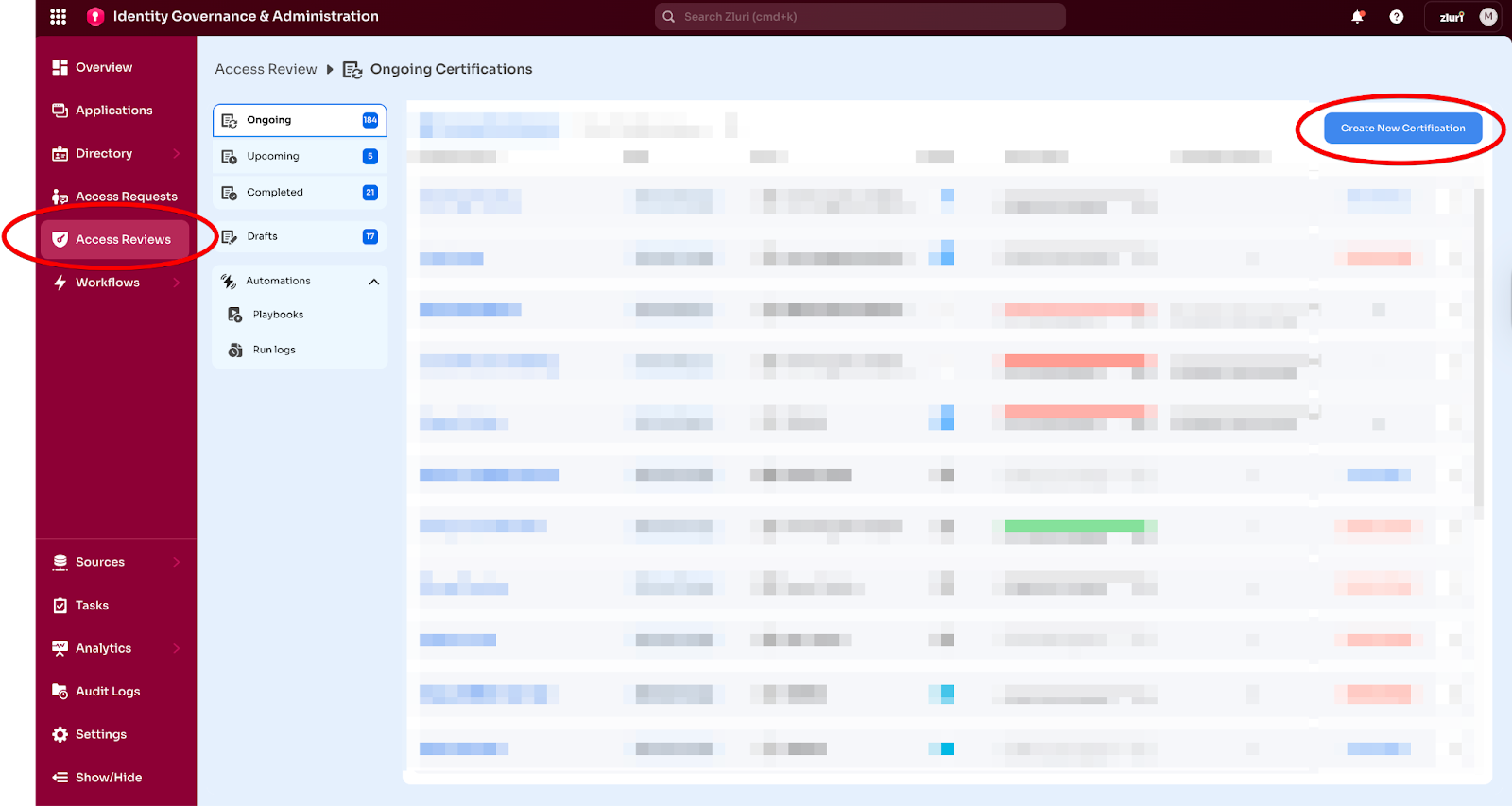
Navigate to: Access Reviews → Create New Certification
A three-step configuration wizard opens:
- Certification Details
- Set Up Certification
- Complete Setup
Step 1.2: Configure Certification Details (10 minutes)
Enter basic information:
- Certification Name: Q1 2026 Access Review - Tier 1 Apps
- Certification Owner: Select yourself or designated owner
- Must have Owner, Admin, or IT Admin permissions
- Description (optional): "Quarterly access review covering financial systems, customer data, and admin access per SOC 2 compliance requirements"
- Rich text and links supported—link to internal review guidelines if helpful

Select entity type to review:
- Applications: Review users' access to specific apps (most common)
- Groups: Review SSO group memberships (faster for orgs using group-based provisioning)
For the first review, choose Applications. It's most intuitive for reviewers.

Configure optional defaults (apply to all entities unless overridden):
- Default Reviewers: Set role-based assignment (e.g., Reporting Manager)
- Default Remediations: Assign playbooks for revoke/modify actions

Click: "Next"
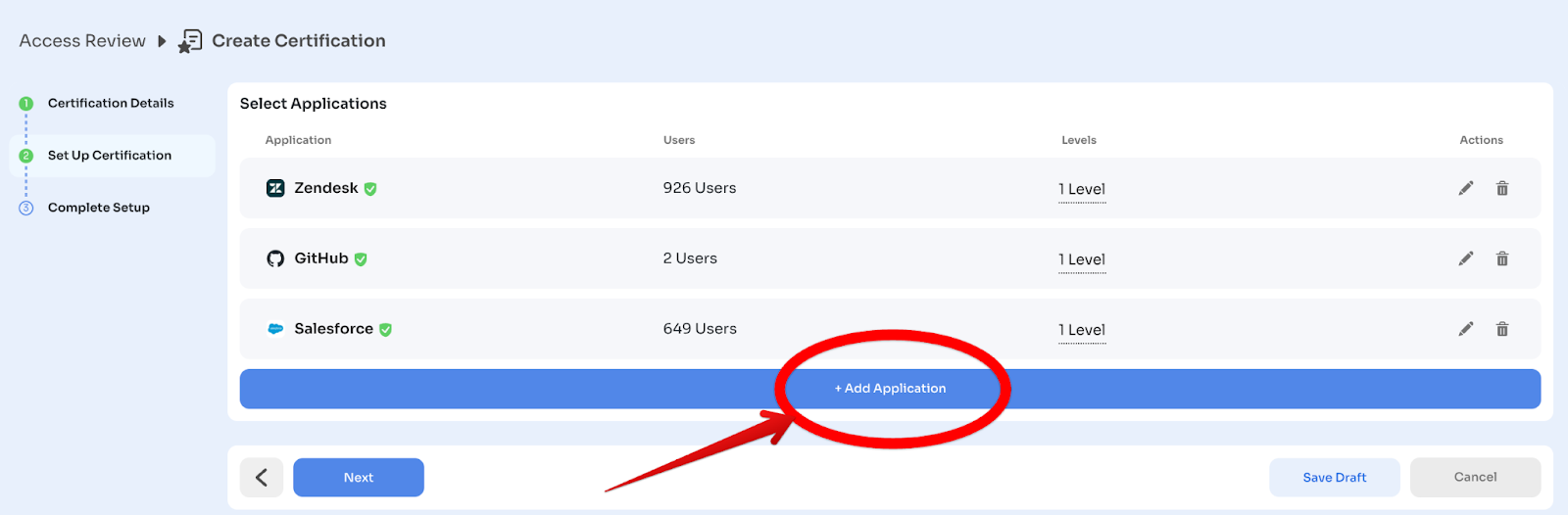
Step 1.3: Add the Application to Review (20 minutes)
Now select which application to include in this certification.
Click: "Select Application"
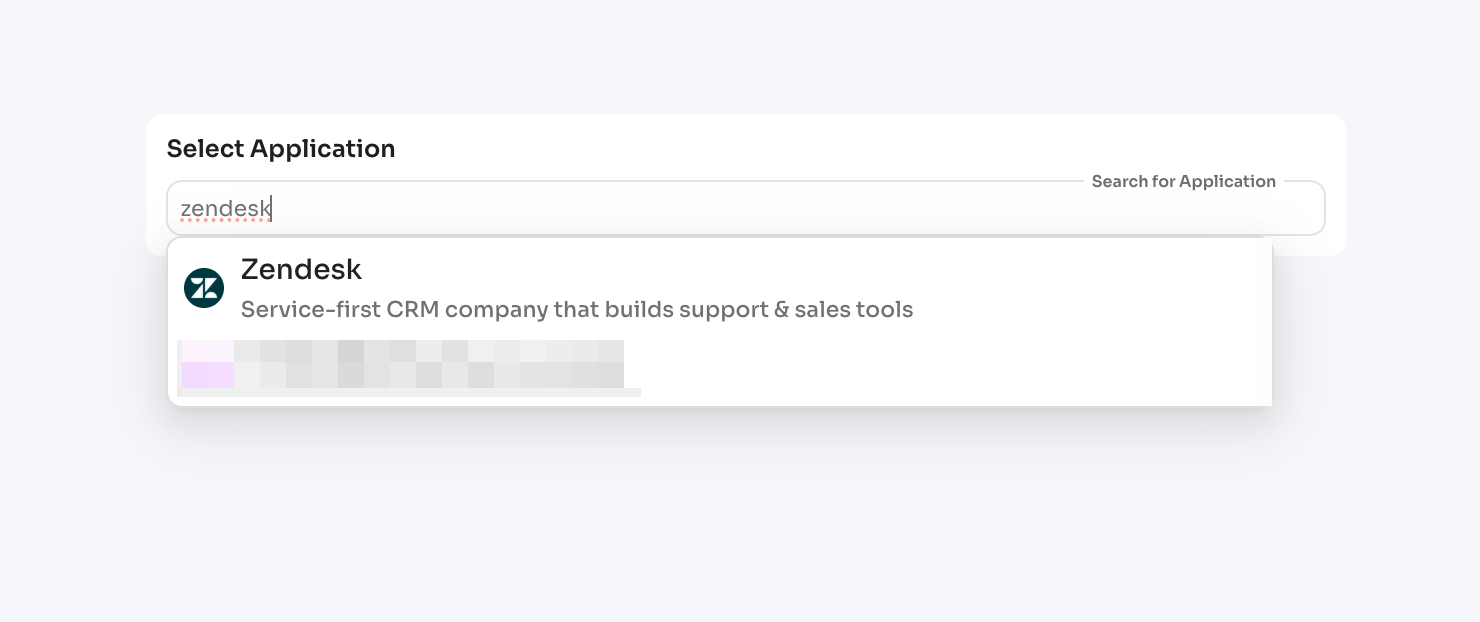
Search and choose the application from your inventory. For each app, you:
a) Assign Reviewers
Configure who reviews access for this application:
Primary Reviewer (required):
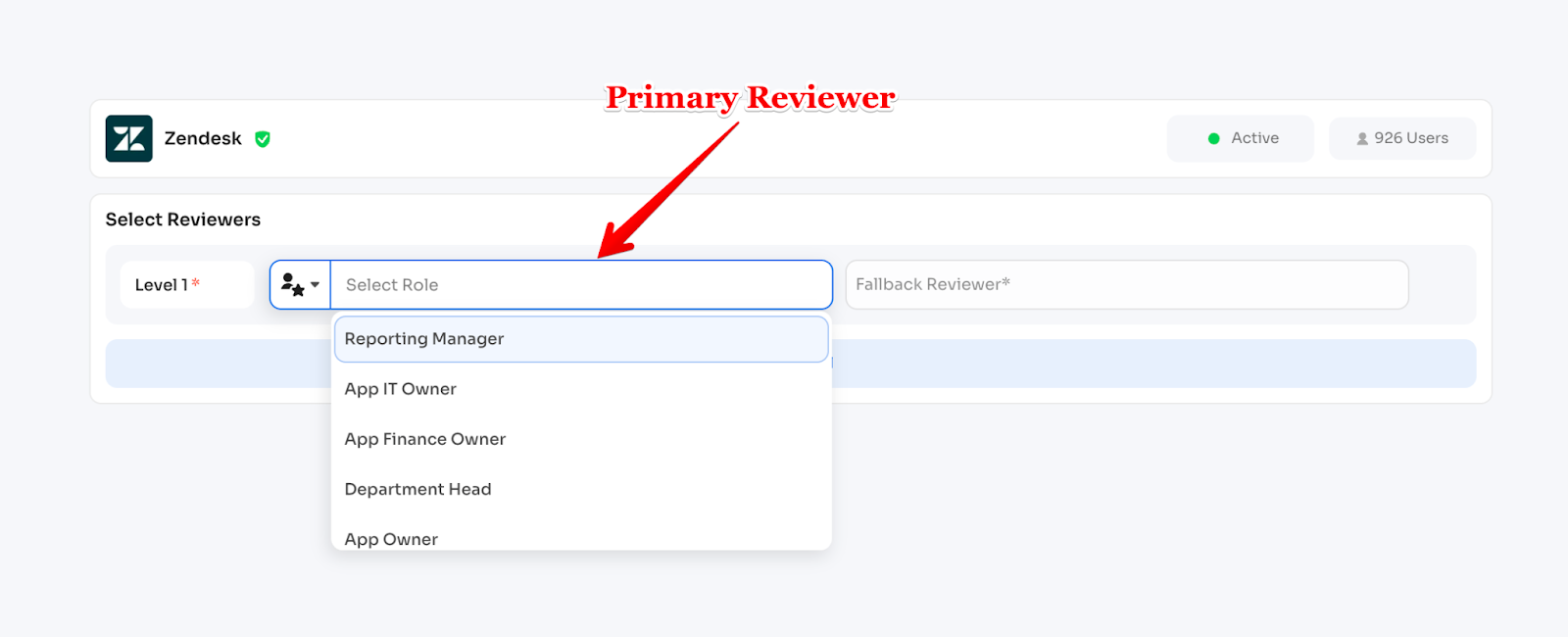
- Role-based: Reporting Manager, Department Head, App Owner, App IT Owner, App Finance Owner
- User-based: Specific named user (e.g., sarah@company.com)
Fallback Reviewer (required):
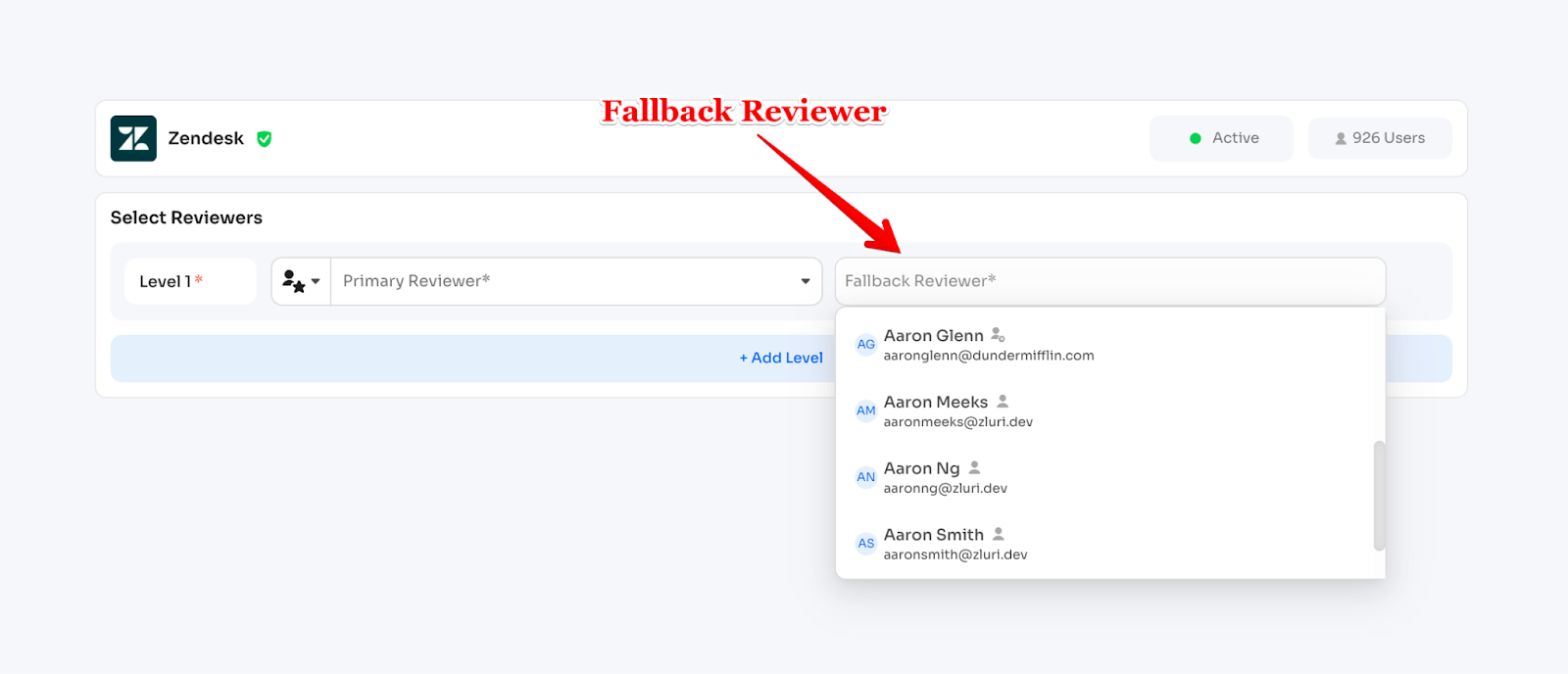
- Must be a specific named user (not a role)
- Automatically assigned when primary reviewer is unavailable or not found
- For example, if "App Owner" is primary but no owner is defined for an app, fallback reviewer gets the task
Multi-Level Reviews (optional):
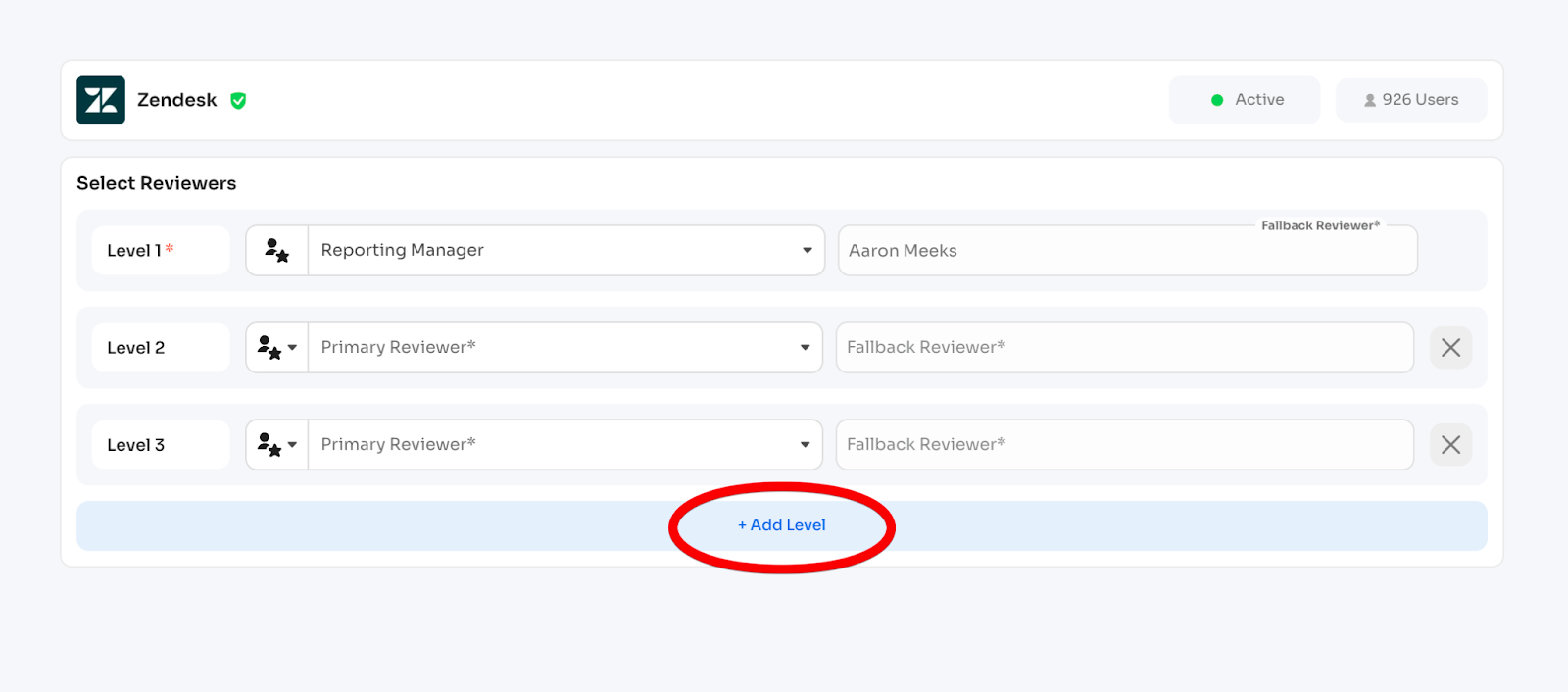
- Add up to 5 sequential review levels
- Each level must have unique primary reviewer
- Fallback reviewer can be reused across levels
- Example: Level 1 = Reporting Manager, Level 2 = Department Head, Level 3 = Security Team
b) Select Users to Review
Filter which users to include:
- By department, employment status, location
- By account-level attributes: app roles, licenses, last login
- Example filters:
- "Include only users with Admin role"
- "Include only inactive employees still holding licenses"
- "Exclude contractors"
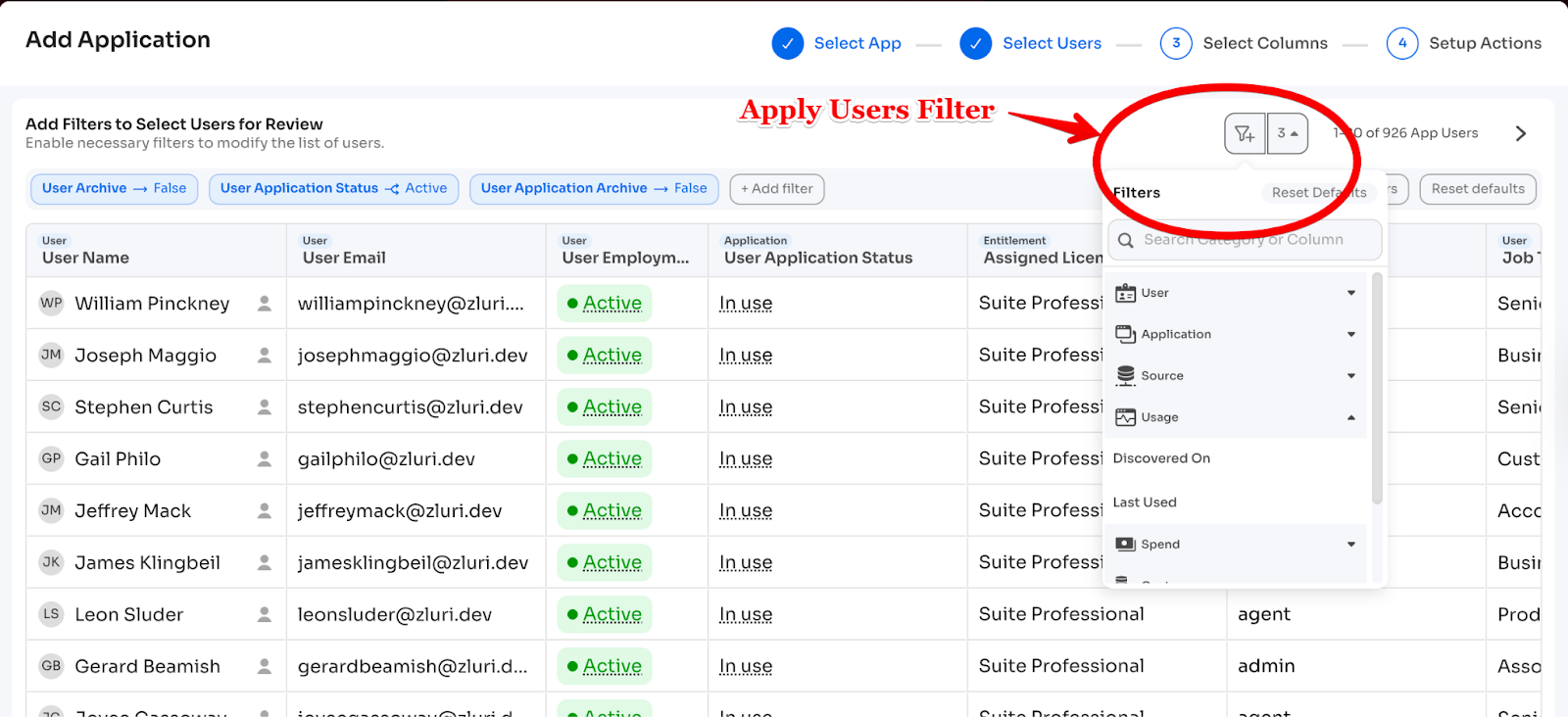
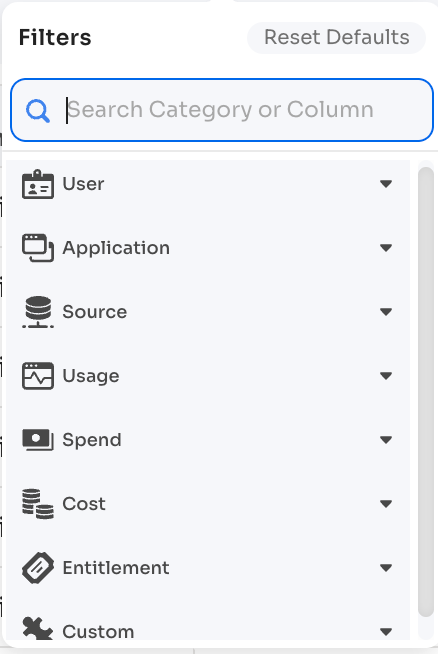
Here's a zoomed-in view of the filter:
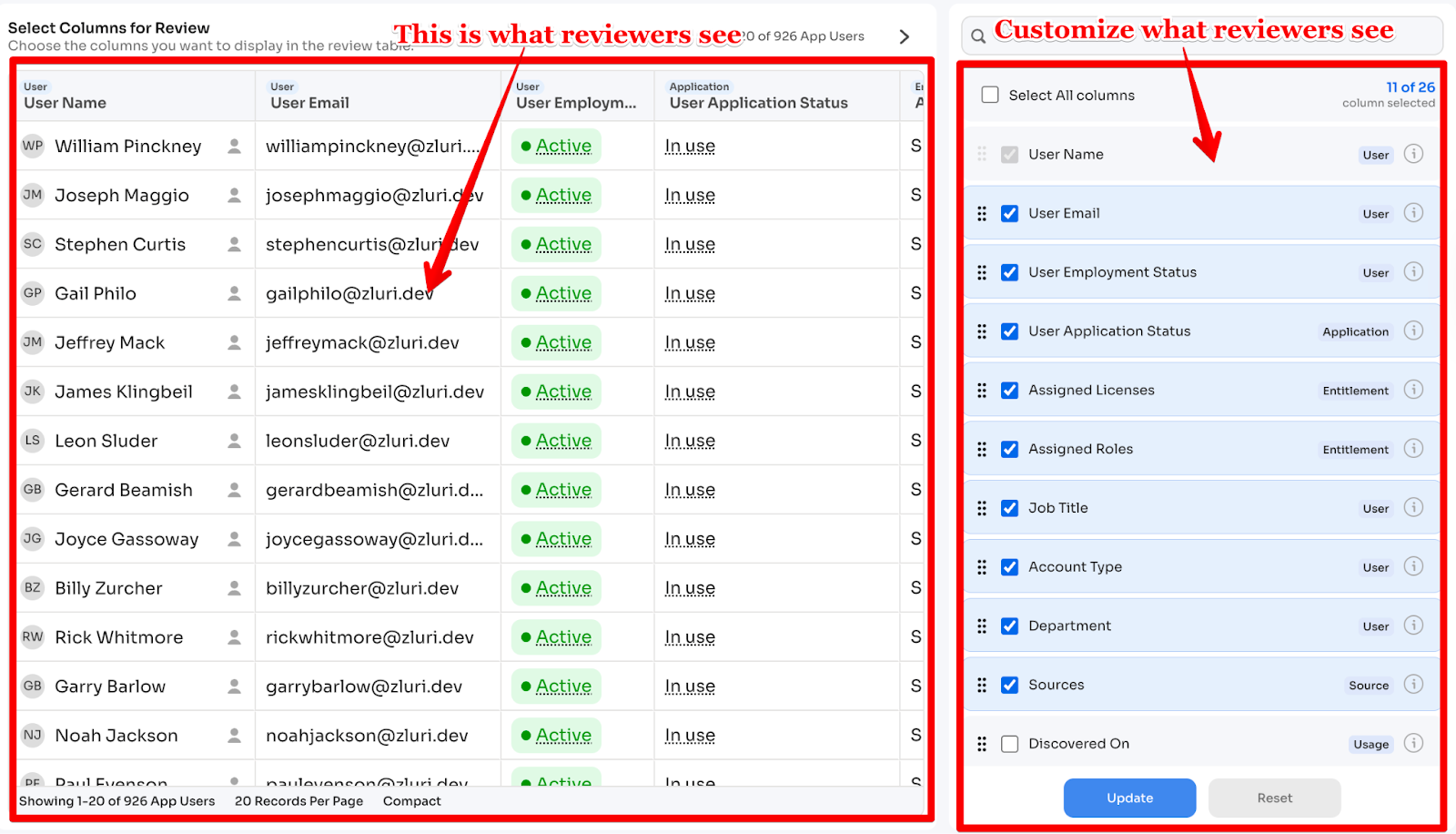
c) Select Columns
Choose what reviewers see in their review table:
- User Name, Email, Department
- App Role, License Type
- Last Login, Employment Status
- Access Granted Date
Reorder columns to prioritize critical information.
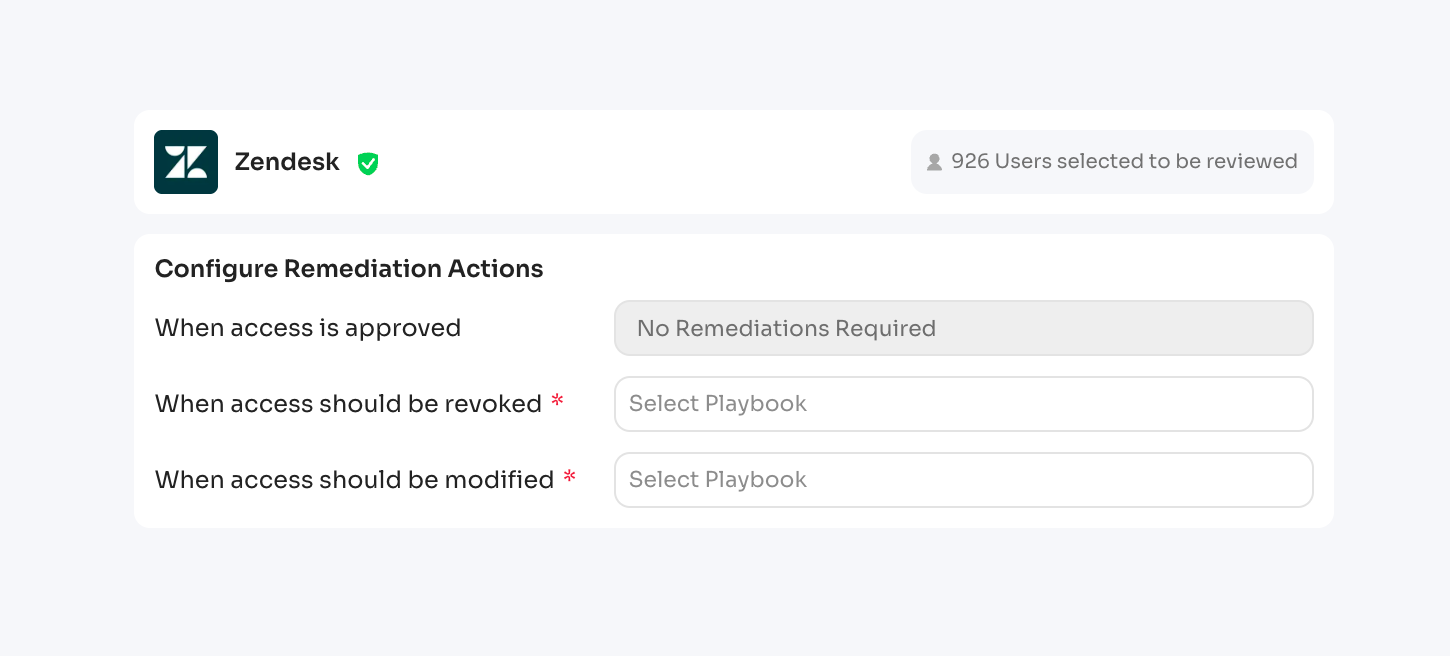
d) Set Up Remediation Actions
Configure what happens when reviewers make decisions:
- Approve: No action (access remains)
- Revoke: Select playbook to remove access
- Modify: Select playbook to adjust permissions (downgrade user level [e.g., admin to user], license type, etc)
Click: "Add Application"
Repeat for all applications you want to review (typically 20-30 for Tier 1).
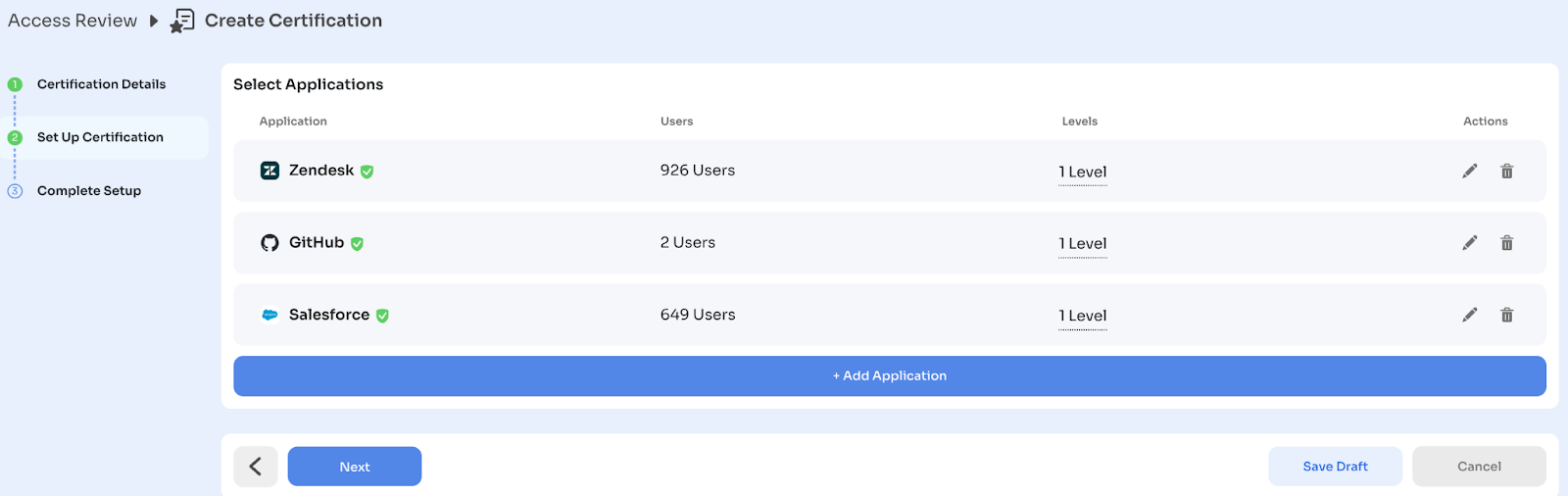
You can add the same application multiple times with different scopes:
- Salesforce (Admin users) → Reviewed by App Owner + Security
- Salesforce (Standard users) → Reviewed by Reporting Manager only
Click: "Next"
Step 1.4: Complete Setup (15 minutes)
Configure timing and self-review handling.

Start Date:
- Start Now: Launch immediately (certification appears in Ongoing tab)
- Start Later: Schedule for future date (appears in Upcoming tab, locked until start)
Set Timelines:
- Review End Date: Deadline for reviewers to complete and sign off (typically 14 business days)
- Remediation End Date: Deadline for completing all remediation tasks (typically 3-5 days after review end)
Automatic Notifications:
- 48 hours before Review End Date → Sent to reviewers with pending actions
- 48 hours before Remediation End Date → Sent to Certification Owner
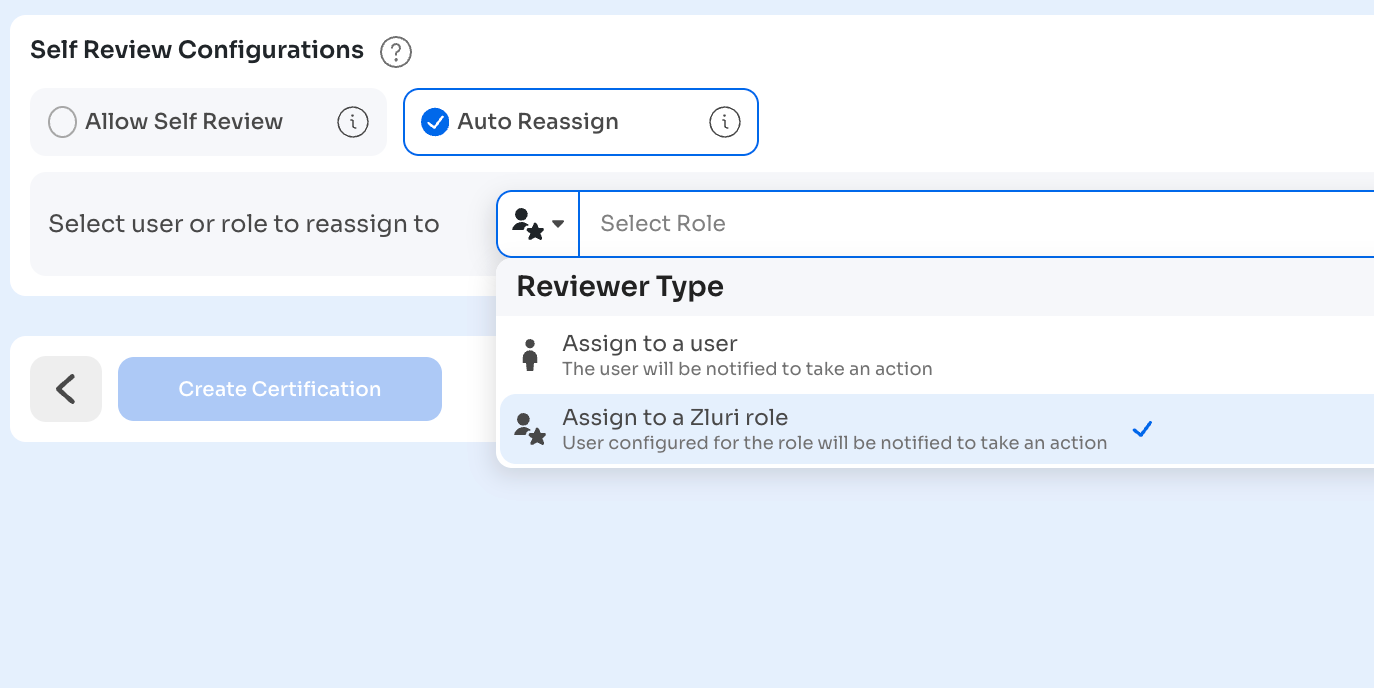
Configure Self-Review Handling:
What happens if a user is assigned to review their own access?
Option 1 - Allow Self-Review:
- Reviewer can approve, modify, or revoke their own access
- Use if your policy permits self-review (most policies don't)
Option 2 - Auto-Reassign:
- Automatically reassigns the record to another person
- Choose reassignment target:
- Assign to a Role: Reporting Manager, Department Head, Certification Owner, Fallback Reviewer
- Assign to a User: Specific named user
Select Auto-Reassign to maintain separation of duties.
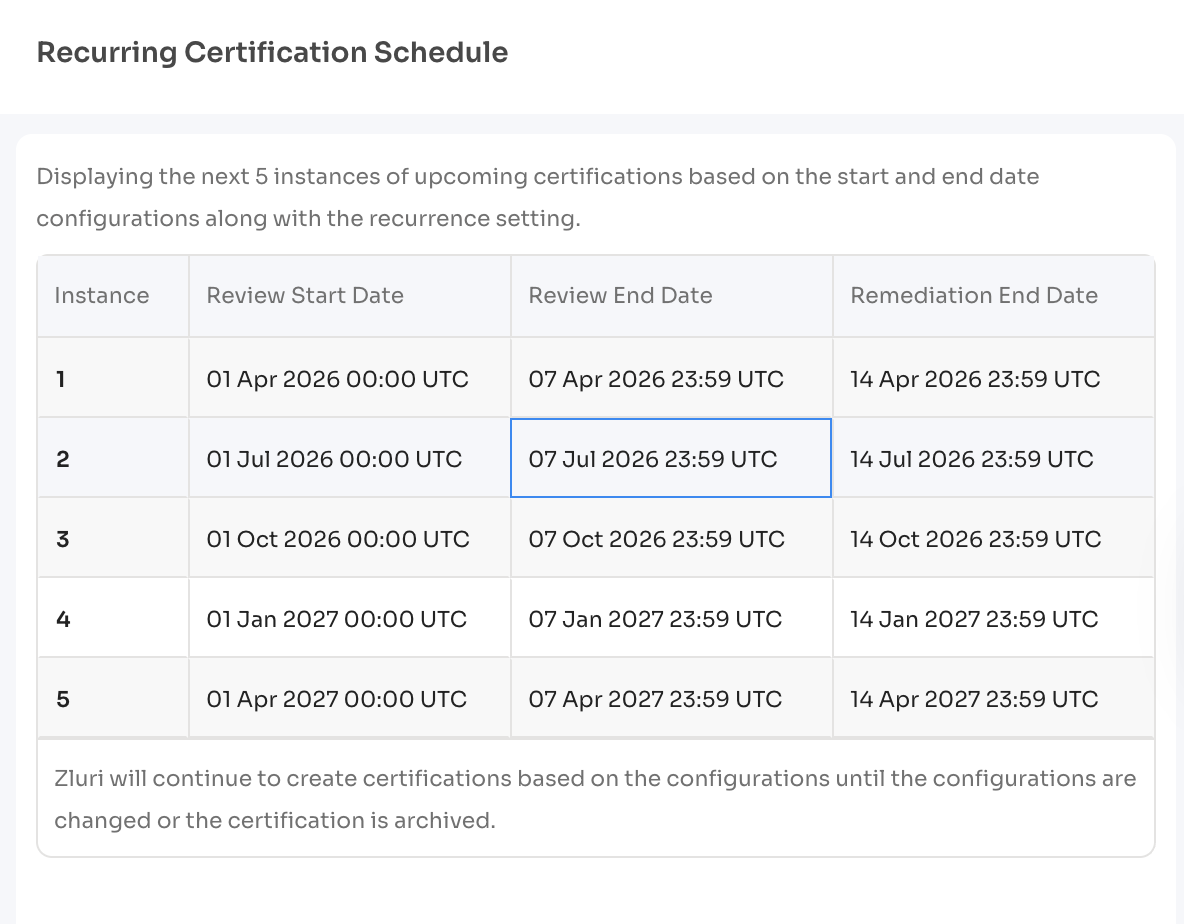
Enable Recurring Certifications (optional):
- Set frequency: Monthly, Quarterly, or custom (up to 12 months)
- Zluri automatically schedules future certifications with same configuration
- Future instances can be modified or archived

Click: "View Certification Schedule" on the right side for next 5 certifications dates
Click: "Create Certification"
Alternatively: Click "Save Draft" to pause and resume later. Drafts appear in the Drafts tab.
Note: For simplicity, we have just added one application in this certification. You can add multiple applications in a single certification.
Step 1.5: Post-Launch Status
What happens immediately:
- Reviewers receive email notification with link to Employee View
- Certification appears in Ongoing Certifications tab
- Countdown timer starts
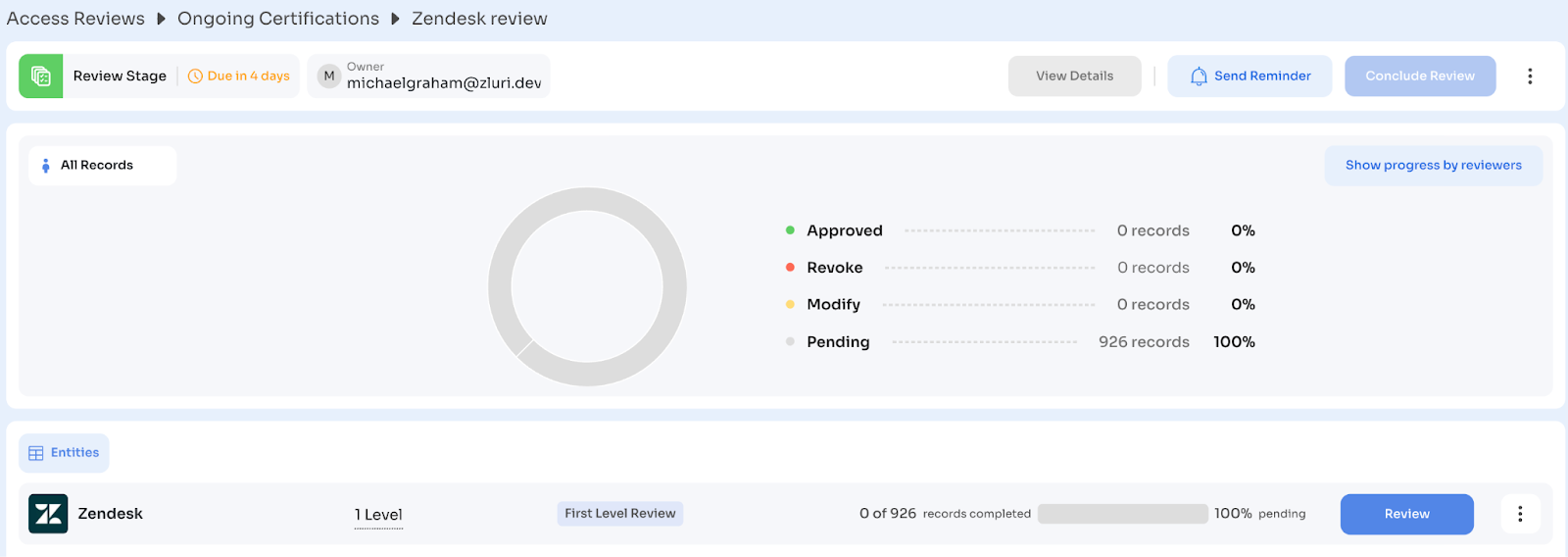
You'll see in the certification dashboard:
- Review Stage: In Progress
- Certification Owner
- Connected Entities (apps/groups)
- Review Status: Progress bar showing completed vs total records
- Due Date with status indicators ("Due in 14 days" or "Overdue: 2 days")
Phase 1 complete. Certification is live. Time to monitor progress.
Phase 2: Monitor Review Progress (Days 2-14)
Certification is live. Reviewers are making decisions. Your job is to monitor completion, send reminders, and handle delegation requests.
Timeline: 12-13 days (reviewer deadline period)
Your effort: 15 minutes daily
Outcome: All reviewers complete and sign off
Step 2.1: Daily Progress Check (10 minutes per day)
Navigate to: Access Reviews → Ongoing Certifications → [Your Certification]
Dashboard shows:
- Completion rate: Records completed vs total
- Progress by entity: Each application/group shows its own completion percentage
- Due date status: "Due in X days" or "Overdue: X days"
Drill into details:
Click: "Show Progress by Reviewers"

Key statuses:
- Complete + Signed Off: Done, no action needed
- Complete + Not Signed Off: Finished reviewing but hasn't clicked Sign Off—send reminder
- In Progress: Actively working, monitor
- Not Started: Needs personal outreach
Step 2.2: Send Manual Reminders
Zluri sends automatic reminders 48 hours before the deadline. For earlier intervention, send manual reminders.
From certification overview:
- Click: "Send Reminder" to notify all reviewers with pending actions
From reviewer progress view:
- Select specific reviewers
- Click: "Send Reminder" to notify only selected users
Note: Zluri prevents duplicate reminders by skipping anyone who received one in the past hour.
Day 5 - Friendly reminder (email/Slack):
Hi Mike, just a reminder that the Q4 access review is due by Jan 7. You have 15 access items to review. Should take about 15-20 minutes. Log into Zluri Employee View to complete. Let me know if you have questions!
Day 10 - Urgency reminder:
Hi Mike, the access review is 75% complete company-wide, but I don't see yours finished yet. The due date is Jan 7 (4 days away). Can you complete and sign off by the end of week?
Day 13 - Final push:
Hi Mike, access review closes tomorrow. You're one of 3 remaining reviewers. Please complete and sign off today. If there are blockers, let me know immediately.
Step 2.3: What Reviewers See (Their Perspective)
Understanding the reviewer experience helps you support them better.
Reviewers access: Zluri Employee View → Access Reviews
They see two tabs:
- Pending Reviews: Certifications requiring action
- Completed: Certifications where they've signed off
When they open a certification:
Each assigned application appears as a card showing:
- Application name and logo
- Total records to review
- Progress bar
- Due date
When they click an application:
Review table appears with columns configured during setup:
- User Name, Email, Department
- App Role, License Type
- Last Login, Employment Status
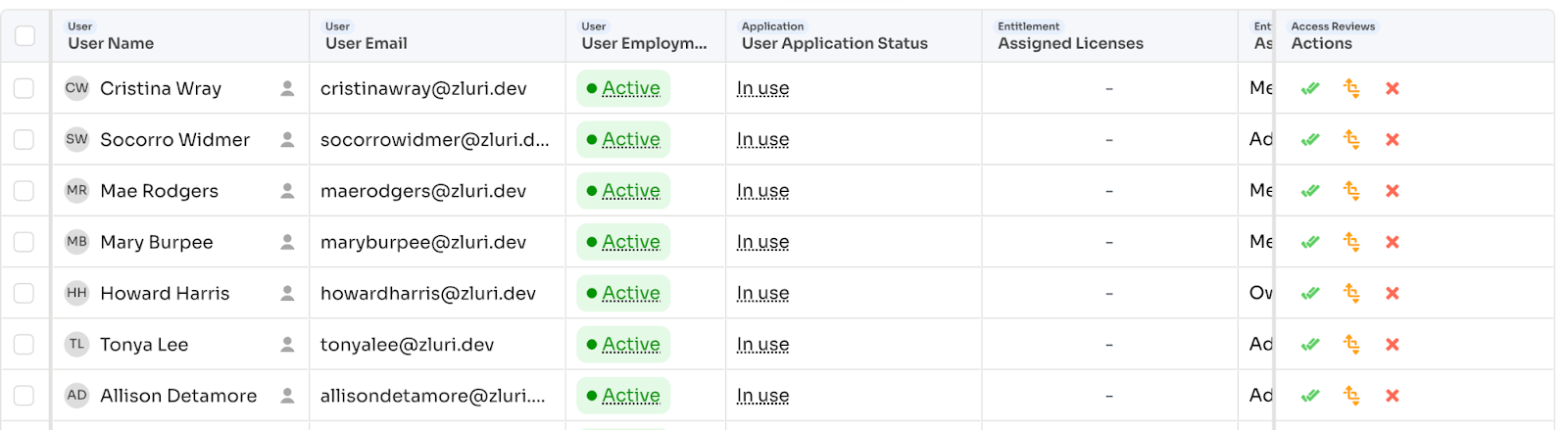
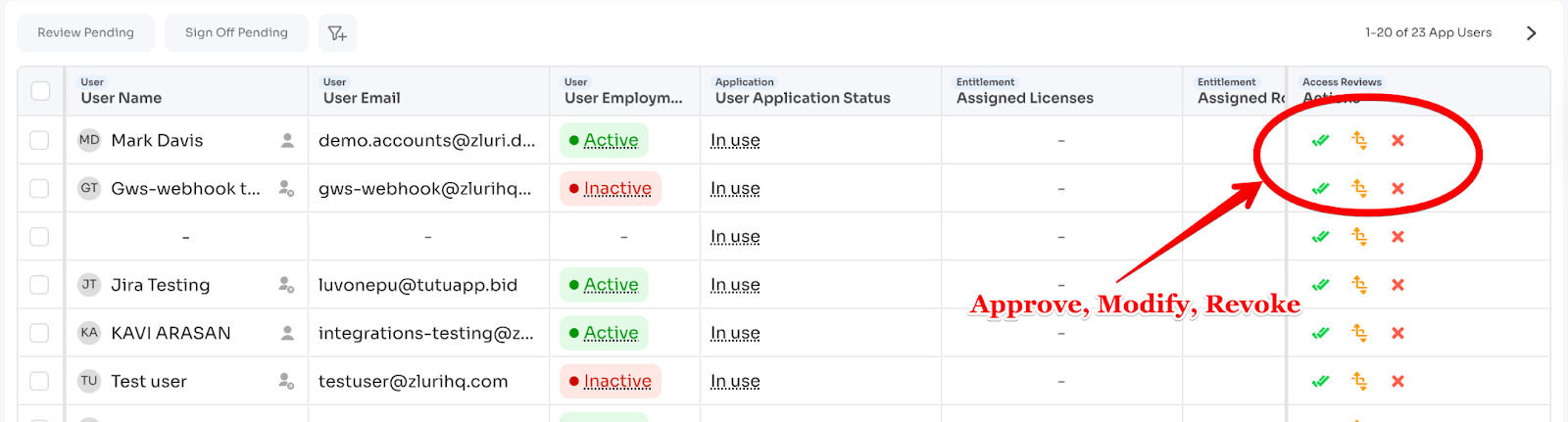
For each record, three action options:
- Approve: Access remains (comment optional)
- Modify: Change permission level (comment mandatory)
- Revoke: Remove access (comment mandatory)
Zluri Insights (AI recommendations):
Zluri highlights potential issues:
- Dormant accounts
- External users (contractors, consultants, freelancers, partners, etc.)
- Orphaned accounts
- Inactive licensed accounts (for cost optimization simultaneously)
- Privilege accounts
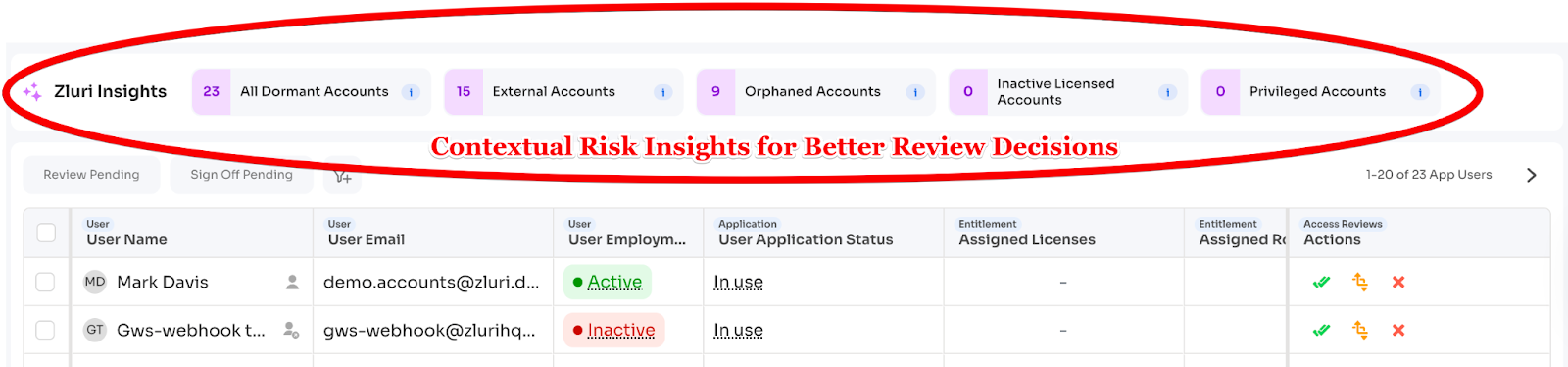
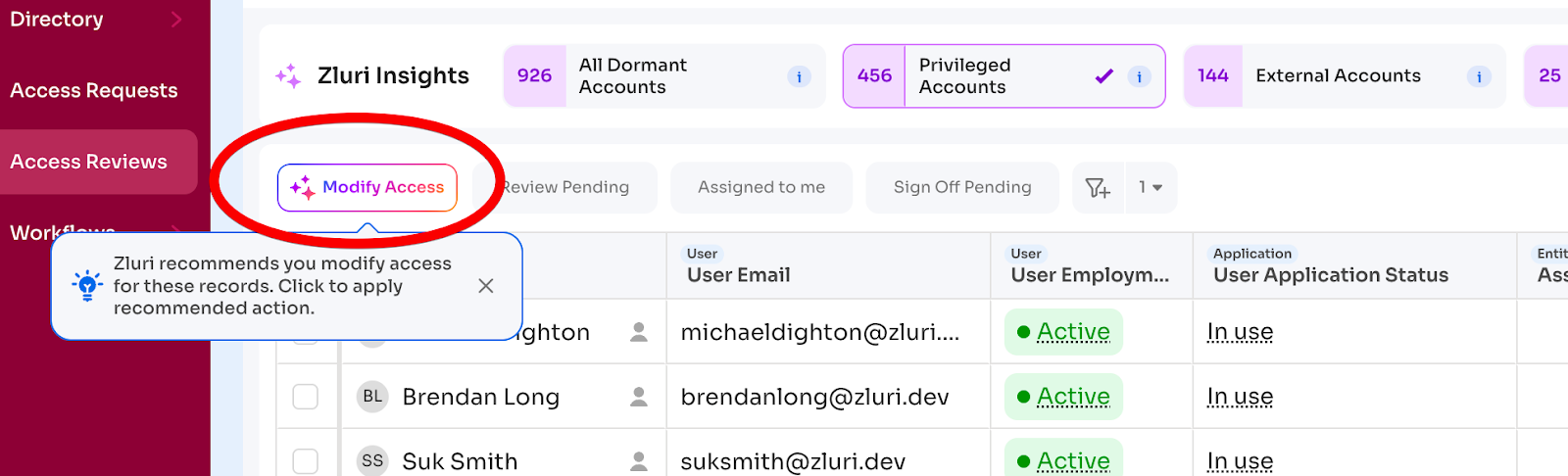
Recommended actions appear: "Revoke unused access" or "Downgrade license to standard"

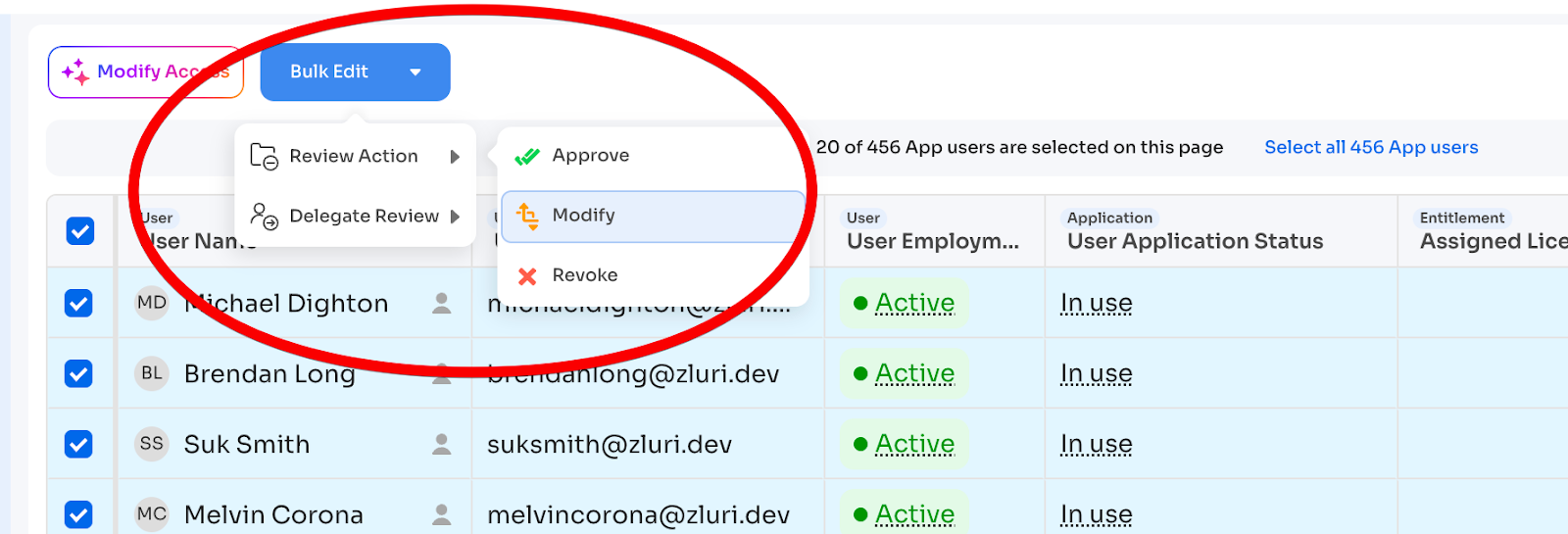
Bulk actions:
Reviewers can select multiple records and:
- Bulk Approve
- Bulk Modify (comment applies to all)
- Bulk Revoke (comment applies to all)
Delegation:
If a reviewer can't complete their assignment:
- Select records
- Click "Bulk Edit" → "Delegate Review"
- Search and assign new reviewer
- New reviewer receives notification
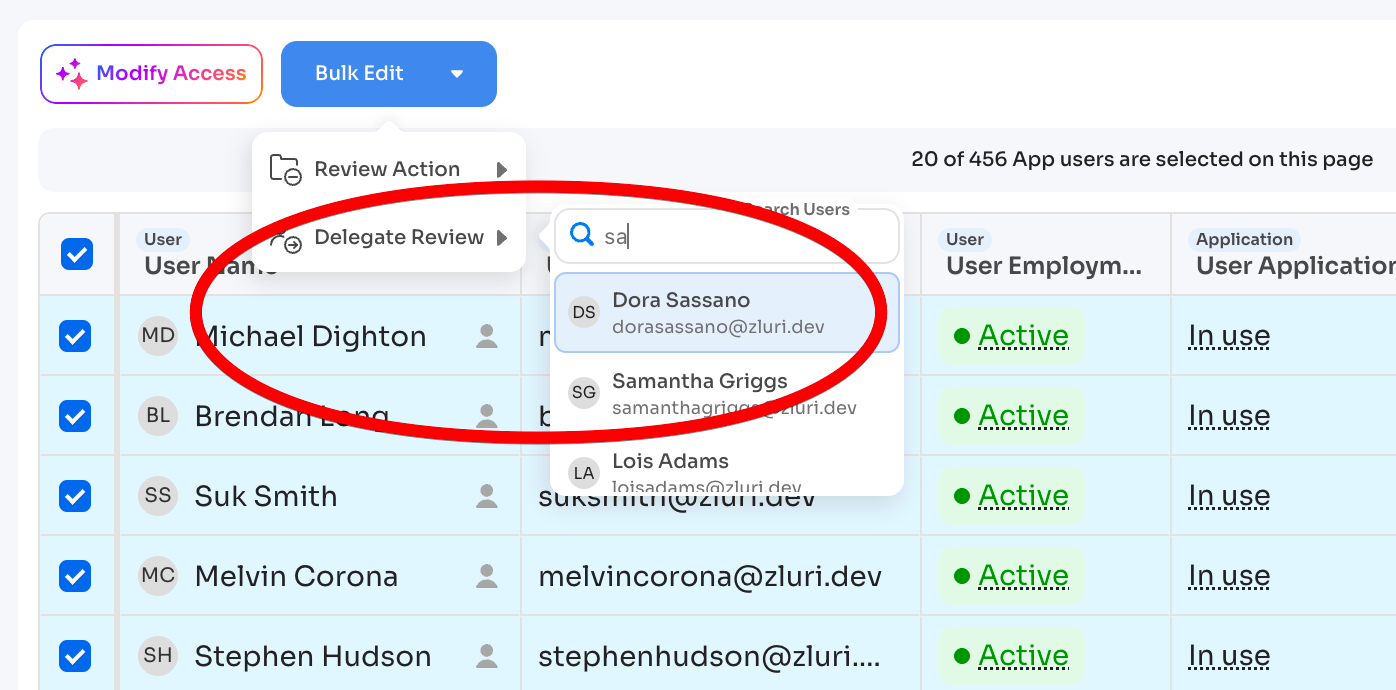
Only pending (not signed-off) records can be delegated.
Step 2.4: The Critical Sign-Off Step
This is important: Completing reviews is NOT the same as signing off.
After reviewers finish all decisions, they must click Sign Off to:
- Lock their actions (no further edits)
- Confirm review is complete
- Allow progression to next level (if multi-level) or remediation
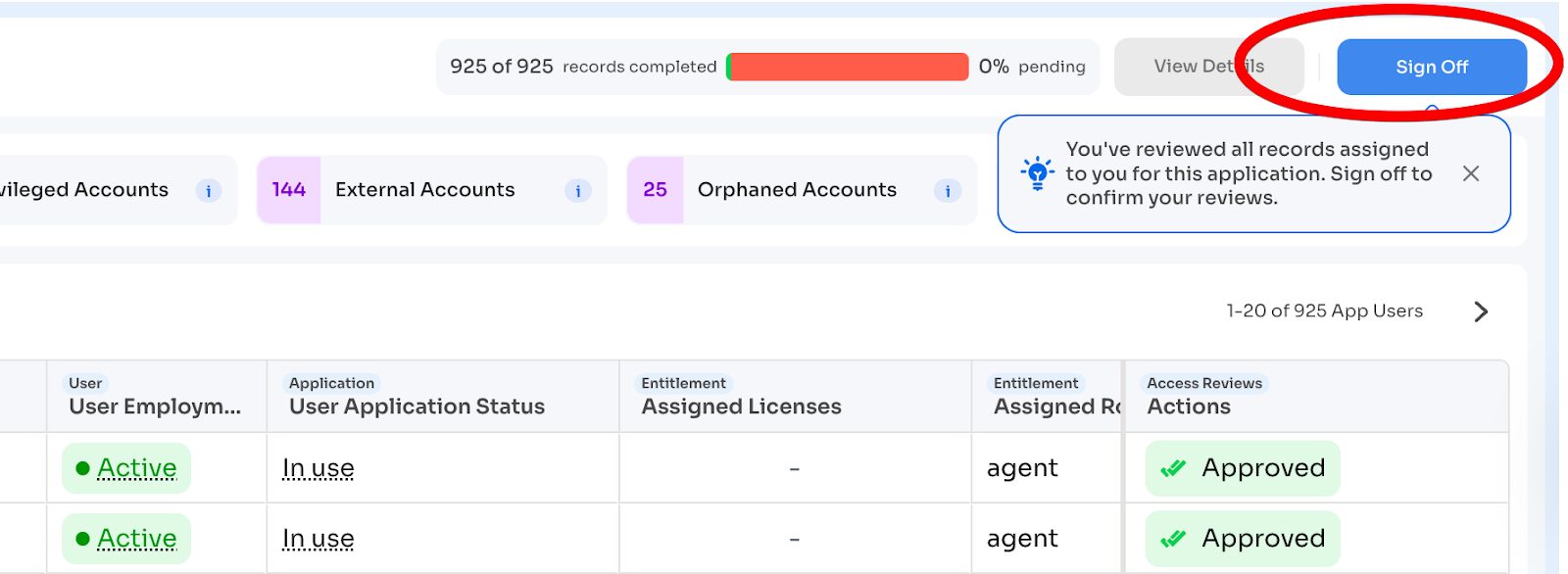
Sign-Off flow:
- Reviewer completes all assigned records (100%)
- Top bar shows "100% records completed"
- Reviewer clicks "Sign Off" button
- Confirmation prompt appears
- Reviewer confirms
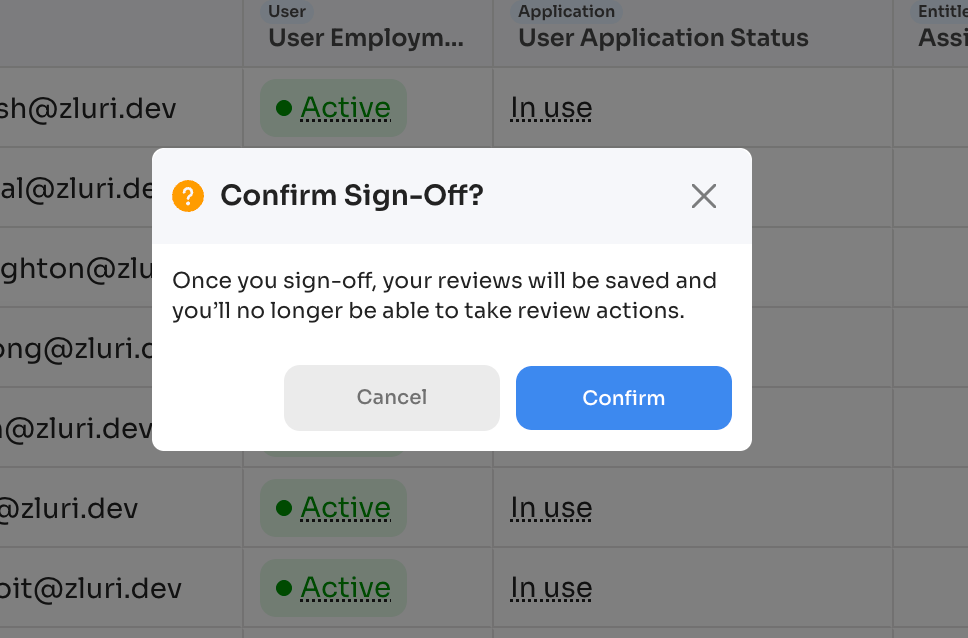
After sign-off:
- Actions become locked and non-editable
- Records progress to next review level OR
- If final level, entity becomes "Ready for Remediation"
Common issue: Reviewers complete all decisions but forget to sign off. The certification stalls.
Solution: Use "Show Progress by Reviewers" to identify reviewers who completed actions but haven't signed off. Send targeted reminders.
Step 2.5: Handle Incomplete Reviews (Day 14)
Campaign deadline arrives. Some reviewers may not have completed or signed off.
Check status:
Navigate to: Certification → Show Progress by Reviewers
Identify:
- Reviewers with incomplete actions (haven't reviewed all records)
- Reviewers who completed actions but haven't signed off
For reviewers who completed actions but didn't sign off:
Use Force Sign-Off:
- Navigate to: Certification → [Entity] → Show Progress by Reviewers
- Select reviewer(s) with completed actions but no sign-off
- Click "Force Sign Off"
- Their actions are locked and recorded as signed off
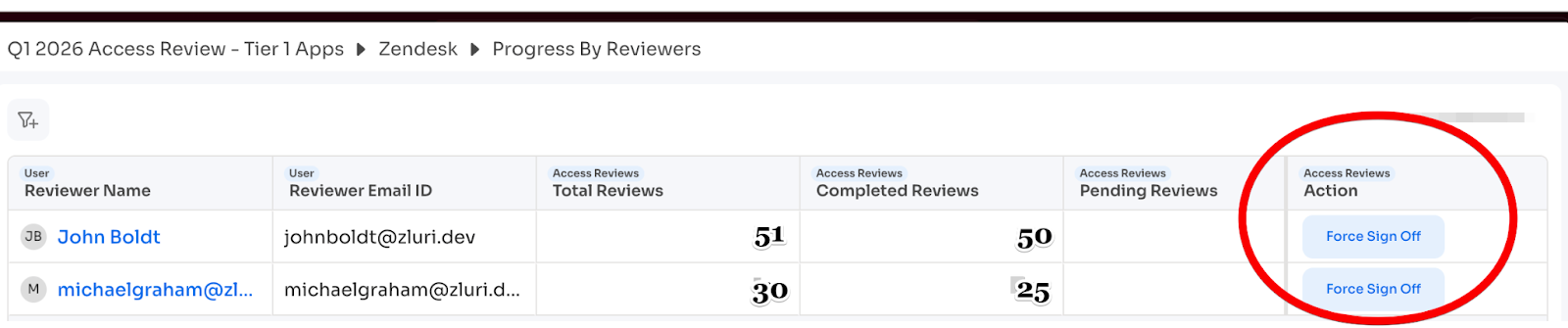
Who can force sign-off: Certification Owner, or Admins with Owner/Admin/IT Admin roles.
Note: Force Sign-Off only works when all actions are complete. You cannot force sign-off for reviewers with pending (incomplete) actions.
For reviewers with incomplete actions:
Options:
- Extend deadline: Give 2-3 more days
- Delegate: Reassign their pending records to another reviewer
- Escalate: Contact their manager
To delegate incomplete records:
- Open the entity (application/group)
- Filter to show only records assigned to the incomplete reviewer
- Select all pending records
- Click "Delegate Review"
- Assign to backup reviewer
Target 100% completion and sign-off before proceeding to remediation.
Phase 3: Conclude Review and Execute Remediation (Days 15-17)
All reviewers have signed off. Now close the review and trigger remediation.
Timeline: 2-3 days
Your effort: 1-2 hours
Outcome: All revoked access removed and verified
Step 3.1: Verify Ready for Remediation Status
Navigate to: Access Reviews → Ongoing Certifications → [Your Certification]
Check entity status:
When all records for an entity are reviewed and signed off across all configured levels, Zluri marks it: "Ready for Remediation"
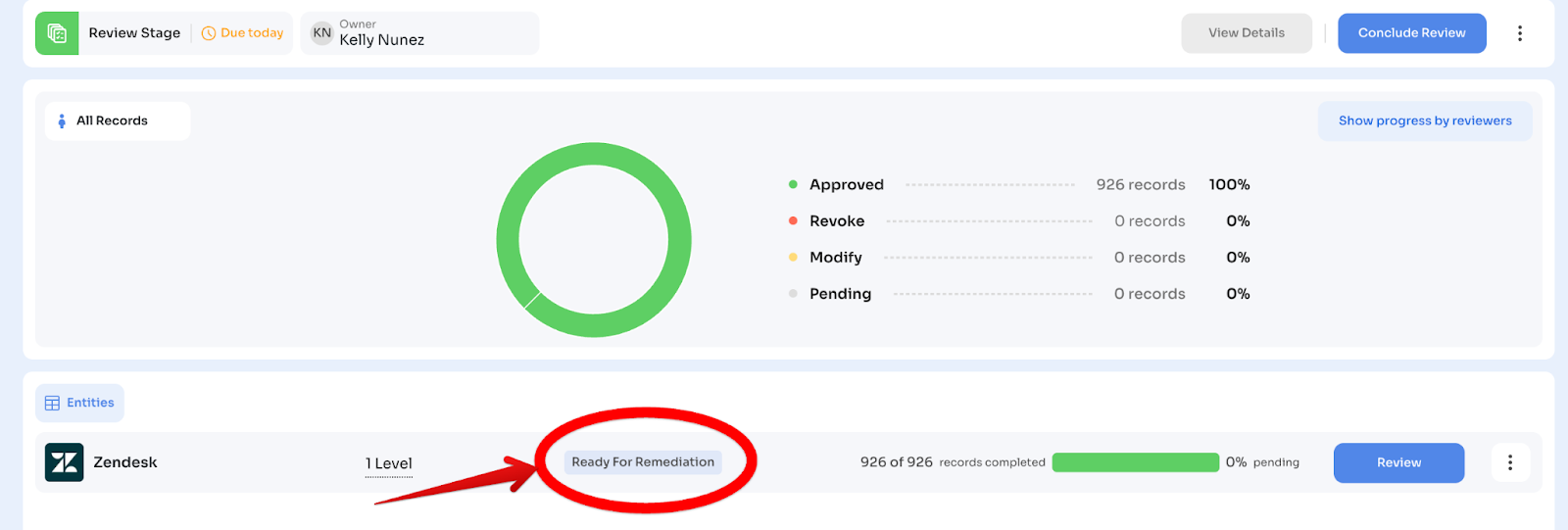
When ALL entities have this tag, the "Conclude Review" button becomes enabled.
If button is disabled: Check which entities are still pending sign-offs.
Step 3.2: Conclude the Review (10 minutes)
Click: "Conclude Review"
What happens:
- Zluri validates all linked remediation playbooks
- If any playbook is unpublished, deleted, or misconfigured, Zluri blocks conclusion
- You must fix playbook issues before proceeding
Playbook validation errors:
- "Playbook unpublished" → Go to playbook, click Publish
- "Playbook deleted" → Create new playbook or select different one
- "Missing permissions" → Update integration permissions
Once validated:
Click: "Conclude Review" → Confirm
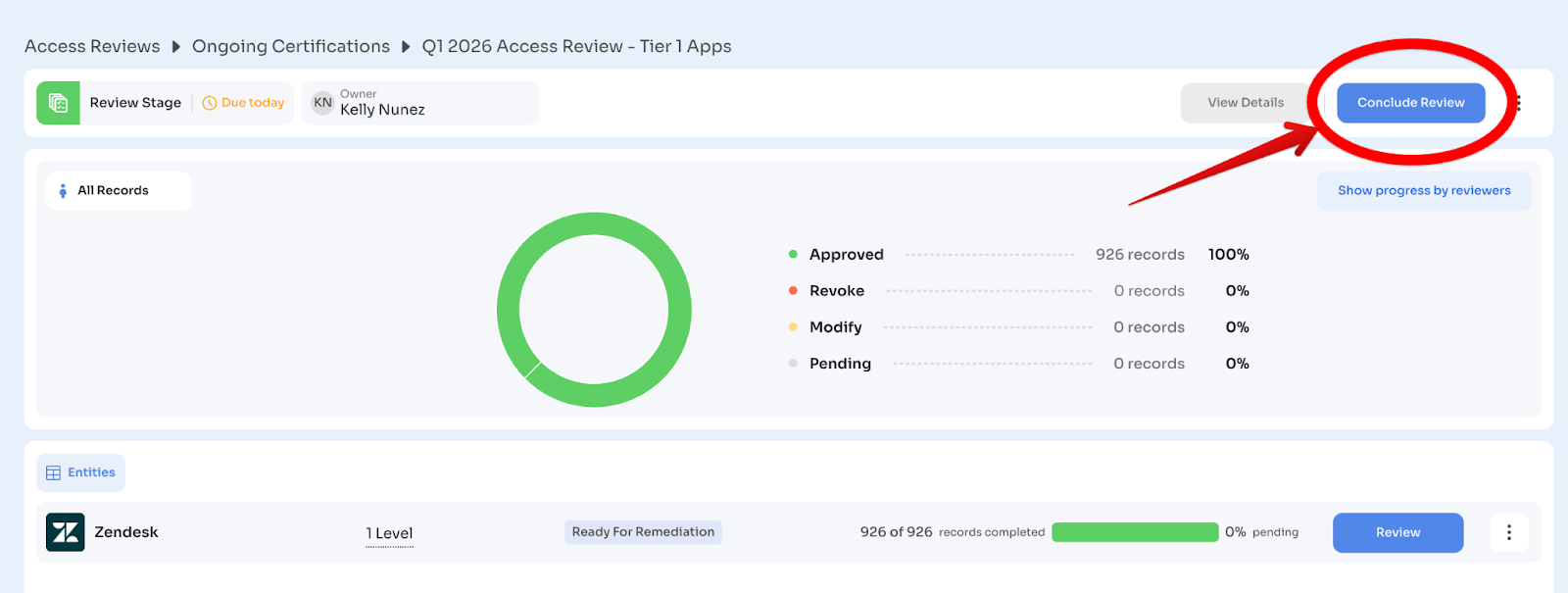
What happens next:
- Review stage closes (no more edits possible)
- Remediation stage begins
- Playbooks trigger for all Revoke and Modify decisions
Step 3.3: Monitor Remediation Execution
Navigate to: Certification → Remediation Status
You'll see:
- Total remediation actions pending vs completed
- Status per user: Pending, In Progress, Completed, Failed
Click any record to view run log:
- Playbook executed
- Action performed (e.g., "Remove User from Group")
- Executor (automated by Zluri or manual assignee)
- Timestamps (start and completion)
- Error messages (if failed)
Automated vs Manual:
- Automated: Zluri executes via API immediately
- Manual: Creates tasks in the configured systems (Jira, ServiceNow, etc.)
Step 3.4: Handle Manual Tasks
Manual tasks (from playbooks configured with Jira, ServiceNow, etc.) must be completed outside Zluri.
Track completion:
- Check your ticketing system for assigned tasks
- Verify access was actually removed
- Update ticket status when complete
Evidence: Save screenshots or confirmation from manual remediations for the audit package.
Step 3.5: Complete the Certification (5 minutes)
Once remediation actions are triggered (even if some are still in progress):
Click: "Complete Certification"
What happens:
- Certification moves from Ongoing to Completed tab
- Non-editable PDF report is generated automatically
- Report is emailed to Certification Owner
- Remediation actions continue running in background
Note: You can mark certification complete even if remediation is still in progress, as long as actions have been triggered.
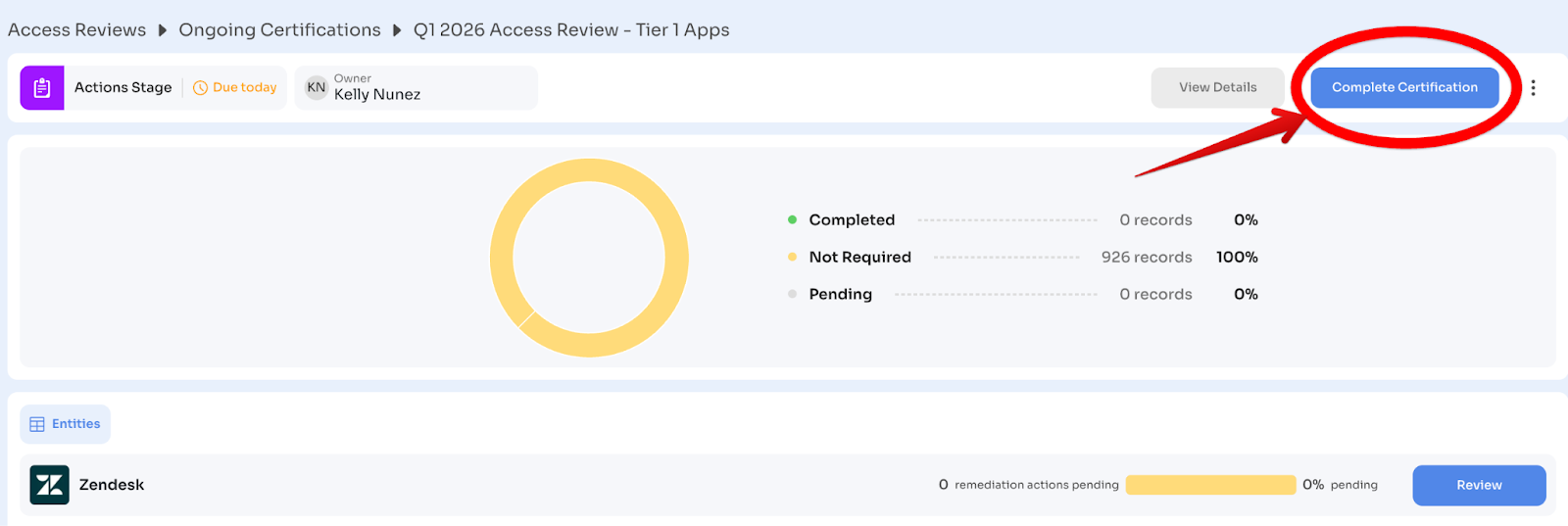
For recurring certifications: Zluri automatically creates the next instance based on configured cadence. To stop recurrence, archive the workflow.
Phase 4: Generate Evidence (Day 17)
Certification complete. Now generate audit-ready evidence.
Timeline: Day 17 (15 minutes)
Your effort: 15 minutes
Outcome: Complete evidence package for auditors
Step 4.1: Access Completed Certification
Navigate to: Access Reviews → Completed tab
Find your certification: Q4 2024 Access Review - Tier 1 Apps
Each row shows:
- Certification Name
- Certification Owner
- Entities Reviewed
- Review Status (e.g., "991 of 991 records completed")
- Remediation Status (e.g., "13 remediation actions pending")
Click the certification to open details.
Step 4.2: Download Reports
Click: Three-dot menu (⋮) in top-right corner
Export options:
- Export CSV Report: Detailed record-level data for all users and actions
- Export CSV for Excel: Version optimized for Excel import
- Download PDF Report: Non-editable, timestamped certification report
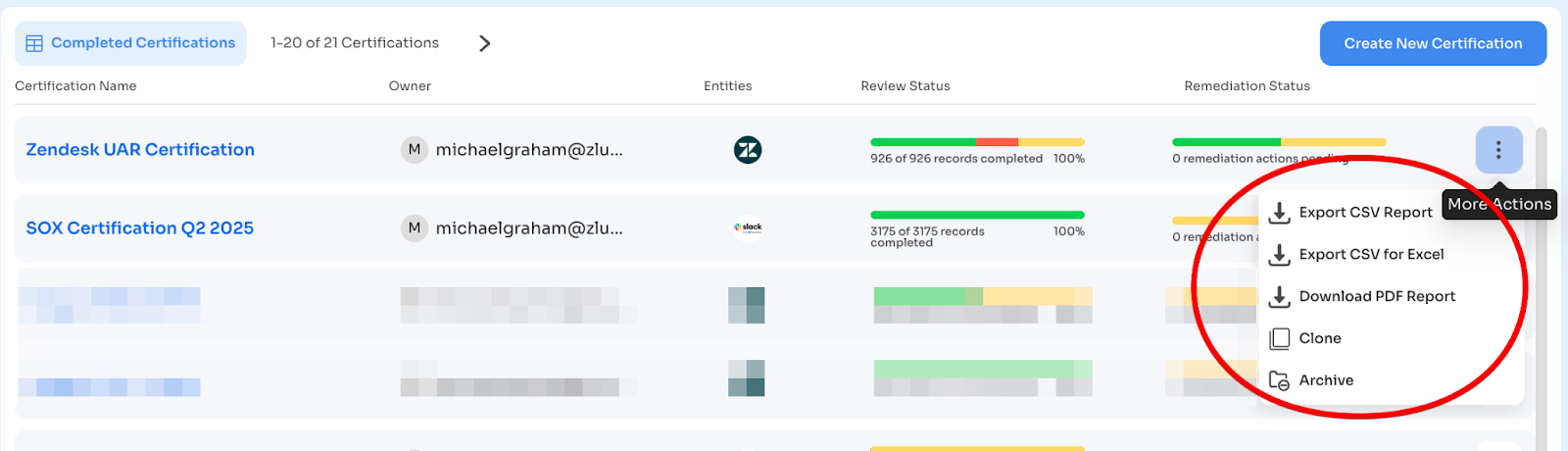
CSV report includes:
- Every user reviewed
- Application/group name
- Reviewer decisions (Approve/Modify/Revoke)
- Comments and justifications
- Timestamps
- Remediation actions taken
PDF report includes:
- Certification metadata (name, owner, dates)
- Reviewer actions for each record
- Mandatory comments for Modify/Revoke
- Remediation actions executed
- Timestamps for every event
Click: "Download PDF Report"
Zluri displays: "Report is being generated"
Report delivered:
- Emailed to Certification Owner
- Available for download from Completed tab
Step 4.3: Compile Evidence Package
Create folder structure for auditor handoff:
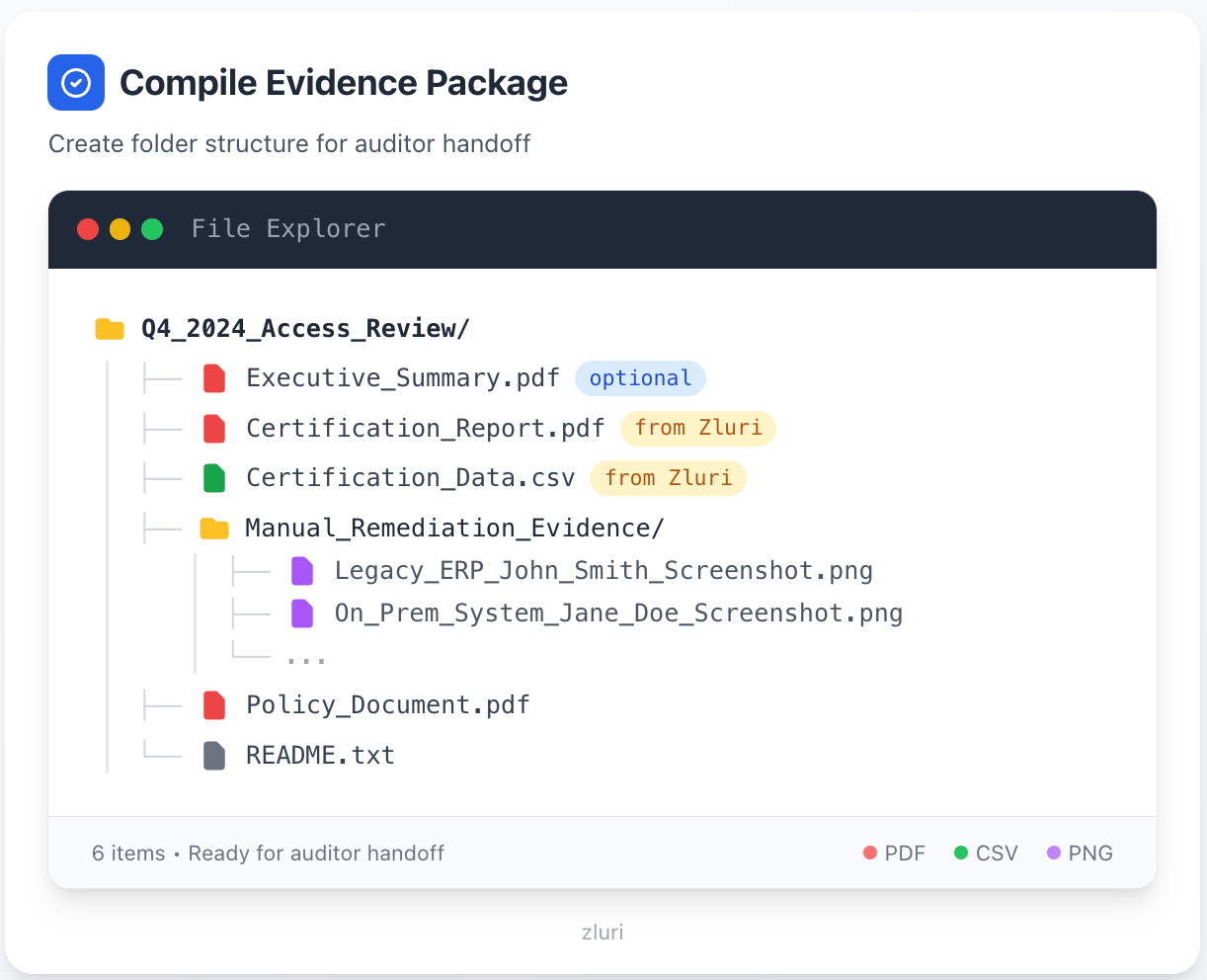
Evidence package satisfies:
- SOC 2 (CC6.2, CC6.3)
- SOX 404 (ITGC requirements)
- ISO 27001 (A.9.2.5)
- HIPAA Security Rule
- PCI DSS (7.1, 8.1)
- GDPR Article 32
Step 4.4: Store Evidence Per Policy
Upload to: Your designated compliance repository
Set permissions:
- Read: Internal Audit, Compliance, CISO, External Auditors
- Edit: None (evidence is immutable)
Retention: Per your policy (typically 7 years for SOX)
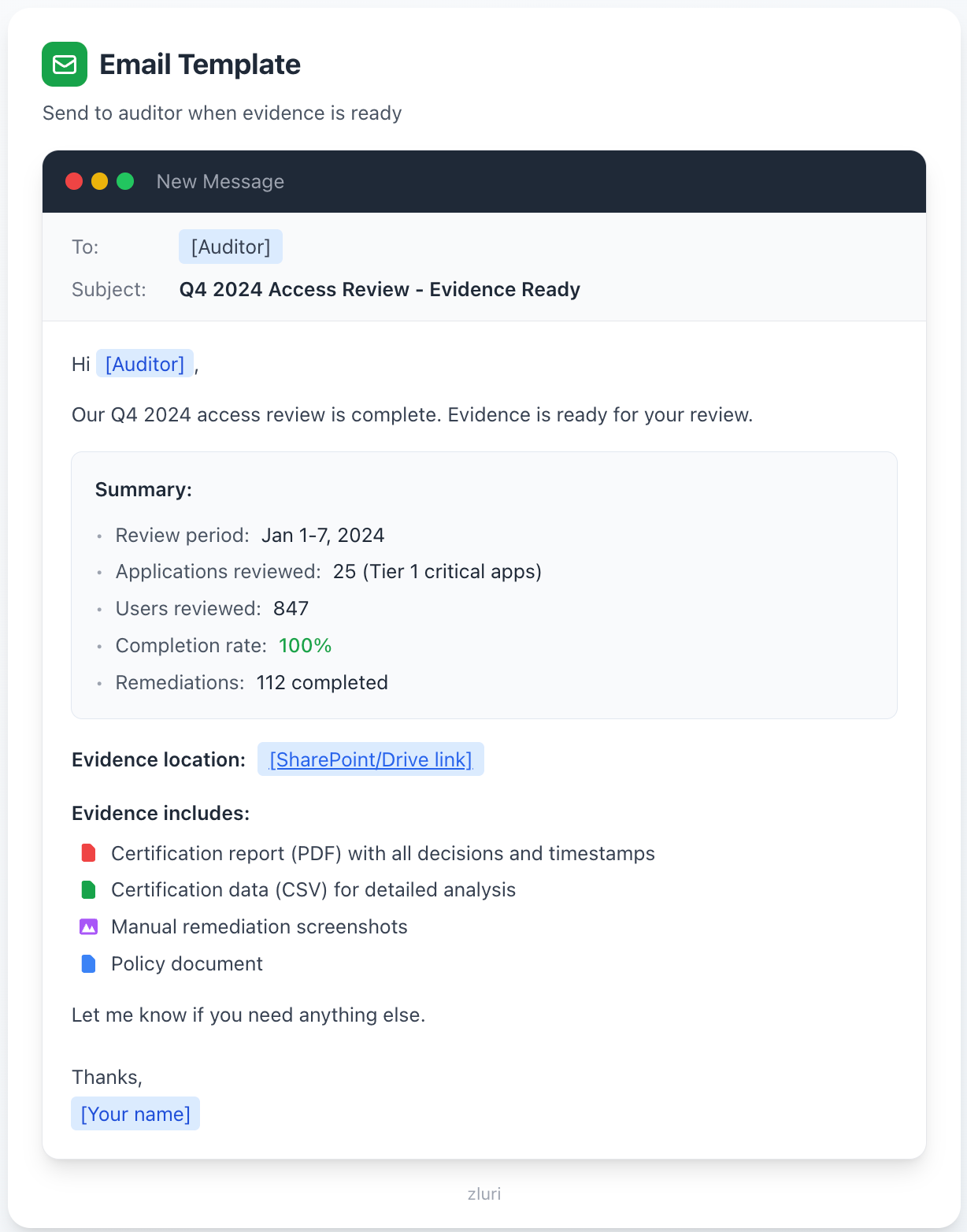
Step 4.5: Brief Your Auditor
Email template:
Common Execution Problems and Solutions
Problem 1: Reviewer Completed Actions But Didn't Sign Off
Symptom: 100% of records reviewed, but certification won't progress
Cause: Reviewer forgot to click "Sign Off" after completing decisions
Solution:
- Send reminder asking them to sign off
- If unresponsive, use Force Sign-Off (Certification → Entity → Show Progress by Reviewers)
Problem 2: Primary Reviewer Not Found
Symptom: Records assigned to fallback reviewer unexpectedly
Cause: Role-based primary reviewer (e.g., App Owner) not defined for that application
Solution:
- Define app owner in Applications → [App] → Overview
- For future certifications, ensure roles are mapped before launch
- Fallback reviewer handles current records (as designed)
Problem 3: Self-Review Blocked But No Reassignment
Symptom: Record stuck with no reviewer assigned
Cause: Auto-reassign configured but target role also creates self-review conflict
Solution:
- Zluri falls back to Certification Owner as final reviewer
- Certification Owner reviews the record
- For future: Choose different reassignment target
Problem 4: Conclude Review Button Disabled
Symptom: Can't conclude even though reviews appear complete
Causes:
- Not all entities are "Ready for Remediation"
- Some reviewers haven't signed off
- Multi-level review still in progress at earlier level
Solution:
- Check each entity's status
- Identify pending sign-offs using "Show Progress by Reviewers"
- Use Force Sign-Off for completed-but-not-signed-off reviewers
- Wait for multi-level reviews to progress
Problem 5: Playbook Validation Fails
Symptom: Error when clicking "Conclude Review"
Causes:
- Playbook unpublished
- Playbook deleted
- Integration permissions changed
Solution:
- Check error message for specific playbook
- Navigate to playbook and fix issue
- Republish playbook
- Retry Conclude Review
Problem 6: Remediation Failures
Symptom: Actions show "Failed" status in remediation
Causes:
- API permission errors
- Rate limiting
- Integration disconnected
- App-specific restrictions
Solution:
- Check run log for error details
- Fix underlying issue (reconnect integration, update permissions)
- Click "Retry" for failed actions
- If still failing, convert to manual task
Problem 7: Manual Tasks Not Completing
Symptom: Manual remediation tasks sitting in queue
Cause: Assignees not aware of tasks or unclear on process
Solution:
- Check ticketing system (Jira, ServiceNow) for task status
- Contact assignees directly
- Provide step-by-step instructions for manual removal
- Collect screenshot evidence when complete
Your First Review: What to Expect
Week 1 (Days 1-7): Launch and early progress
- Your time: 1-2 hours to configure + 15 min daily monitoring
- Status: 20-40% complete by Day 7
- Focus: Answer reviewer questions, handle delegation requests
Week 2 (Days 8-14): Push to completion
- Your time: 15-30 min daily
- Status: Target 90%+ complete by Day 14
- Focus: Send reminders, identify stragglers, prepare for sign-off push
Week 3 (Days 15-17): Conclude and remediate
- Your time: 1-2 hours total
- Status: All signed off, remediation executing
- Focus: Monitor remediation, handle failures, generate evidence
Total time investment: 4-6 hours over 17 days
Compare to manual approach: 60-80 hours over 6-8 weeks
Post-Review: Prepare for Next Quarter
Retrospective (30 minutes)
Within 1 week of completion, discuss with IT, Security, Compliance:
- What went well?
- Where did reviewers get stuck?
- Which apps need better playbook coverage?
- What would we change?
Document lessons learned in your procedure guide.
Update Documentation (15 minutes)
- Add FAQ based on reviewer questions
- Update timing estimates based on actuals
- Document workarounds for issues encountered
Schedule Next Review (5 minutes)
If not using recurring certifications:
- Navigate to: Access Reviews → Create New Certification
- Configure next quarter's review
- Click: "Save Draft" (or schedule with Start Later date)
Now it's queued and won't be forgotten.
Continuous Improvement
Between quarters:
- Add integrations for apps that required manual remediation
- Expand scope (Tier 1 → Tier 1 + Tier 2)
- Refine reviewer assignments based on feedback
- Create additional playbooks for edge cases
Goal: Each quarter should be smoother than the last.
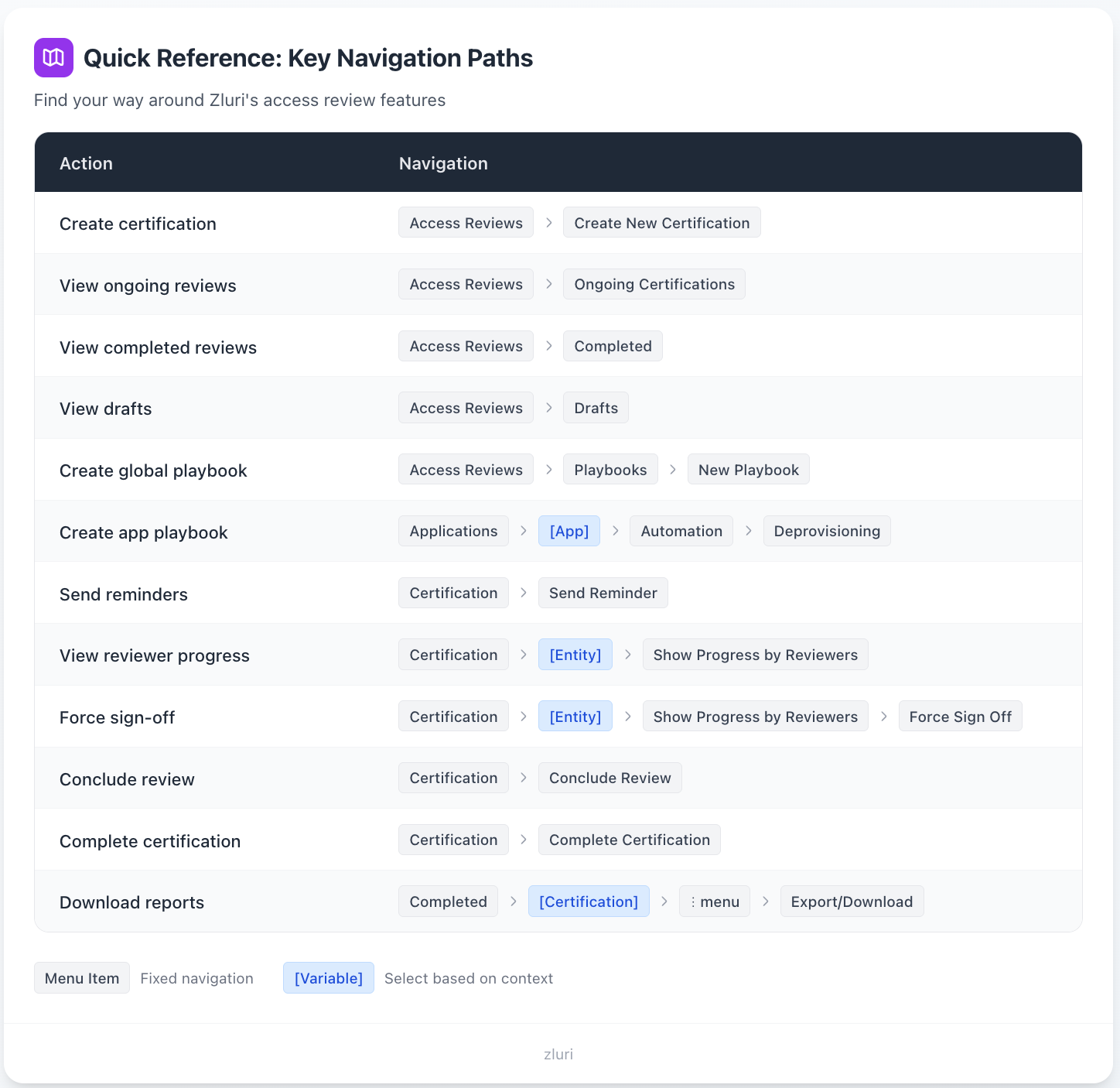
Quick Reference: Key Navigation Paths
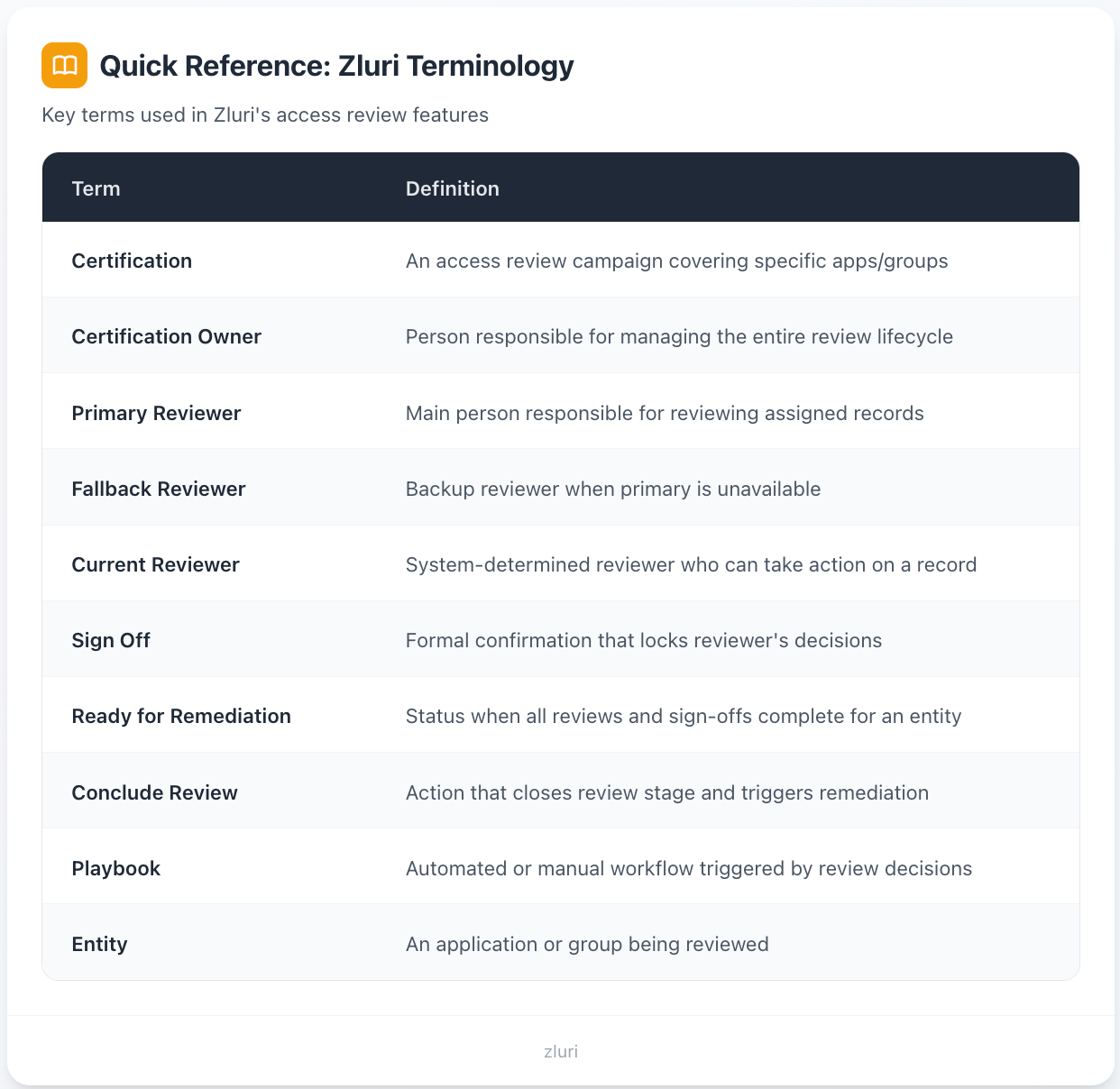
Quick Reference: Zluri Terminology
Conclusion
You now have a complete procedure for executing quarterly access reviews in Zluri.
The 4 phases (repeatable every quarter):
- Create Certification (Day 1): Configure scope, reviewers, playbooks, launch
- Monitor Progress (Days 2-14): Track completion, send reminders, handle delegation
- Conclude and Remediate (Days 15-17): Sign-off verification, conclude review, trigger playbooks
- Generate Evidence (Day 17): Download reports, compile package, brief auditor
Key workflow points:
- Reviewers must Sign Off after completing decisions
- Conclude Review triggers remediation playbooks
- Complete Certification finalizes and moves to Completed tab
Time investment: 4-6 hours per quarter
The first review is always the hardest. You're learning the platform, reviewers are learning the process.
By the fourth review, it's routine. Configure, monitor, conclude, done.
Get Started
See how Zluri automates the evidence generation required by your procedure → Book a Demo